Closing Warranty Requests

Warranty Requests can be closed once all related work has been completed and any required confirmations have been received.
Requests can also be reopened if additional work is required after closure.
Close a Warranty Request from the Warranty Request List
Closing a Warranty Request from the Warranty Request list is the quickest method and is recommended when no further updates or changes are required. This method is best used when the Warranty Request is complete and no additional updates or changes to the request details are required.
To close a Warranty Request from the list:
- From the Warranty Request list, locate the request. You can learn about how to Find Warranty Requests in that section of the Managing Warranty Requests article.
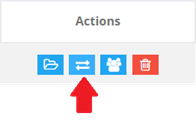
- Select the Change Status button from the Actions column.
- The Change Status window will open.
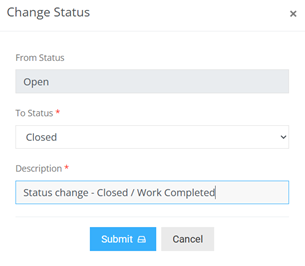
- Select Closed as the new status.
- Enter a status change description. The description defaults to “Status change” but can be updated or added to as needed.
- Select Submit to apply the change. The status will update immediately in the Warranty Request list.
Close a Warranty Request from the Warranty Job Requests Page
Closing a Warranty Request from the Warranty Job Requests page is recommended when you need to review or update details before closing.
To close a Warranty Request from the details page:
- From the Warranty Request list, locate the request.
- Select the Warranty Request Number or Manage button from the actions column.

- The Warranty Job Requests page will open, with the selected request highlighted.
- Select the Edit button from the Requests details section.

- This will open the Warranty Request Details window.
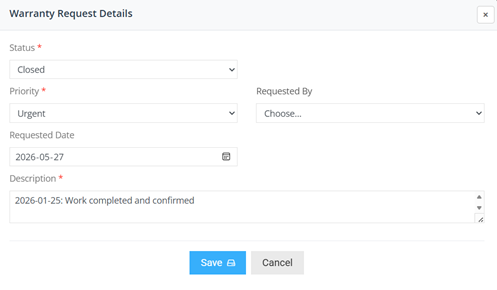
- Update any required fields or details as needed including changing the status to closed and that the description is updated to reflect the closure reason.
- Review for completeness and select Save to apply the change.
Reopen a Warranty Request
A closed Warranty Request can be reopened if additional work is required.
To reopen a Warranty Request:
- From the Warranty Request list, locate the request and select the Change Status button from the Actions column. Note that the assign coordinator button is greyed out, this is because that action is not available on closed requests.
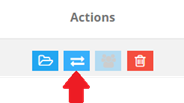
- This will open the Change Status window.
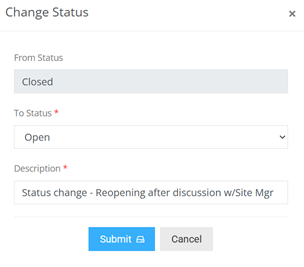
- Update any "To status" field to Open and ensure that the Description is updated to reflect the re-opening reason.
- Review for completeness and select Submit to apply the change.
