Modifying a Released Purchase Order

Applies to Job Related Purchase Orders Only
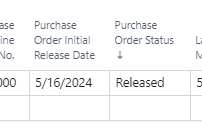
Sometimes it is important to be able to update the items on a purchase order after the purchase order has been released to the vendor. You can tell if the purchase order has been released to the vendor if the status is "Released" or the initial release date on the job planning lines have a date value in it.
Once a purchase order has been seen by the vendor, if you want to make any changes to the purchase order you must process a change log on the job planning lines. This will allow you to up the following fields on a released purchase order.
- PO Description
- QTY
- Unit Cost
- Partial QTY Invoicing Flag
- Invoice by Amount Flag
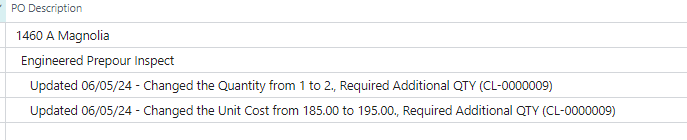
Once the change is completed, a change log will appear on the vendors purchase order that clearly states what was changed on the purchase order. The purchase order will be returned to an open state, and will now need to be reapproved
How to complete a change log
Navigate to the job planning lines you want to adjust.
Confirm if the purchase order has ever been released by validating if there is a date in the purchase order initial release date field. If there is not date in this field, you do not need a change log to update the purchase order
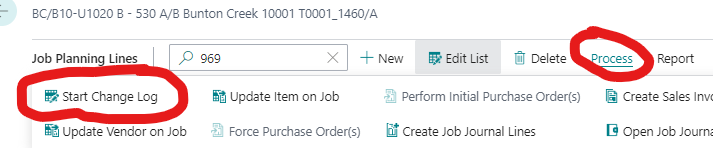
From the process menu, click start a change log
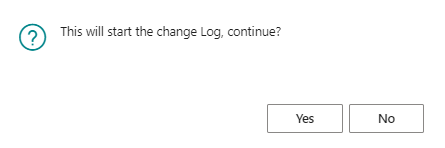
When you get the confirmation screen to start a change log, click yes
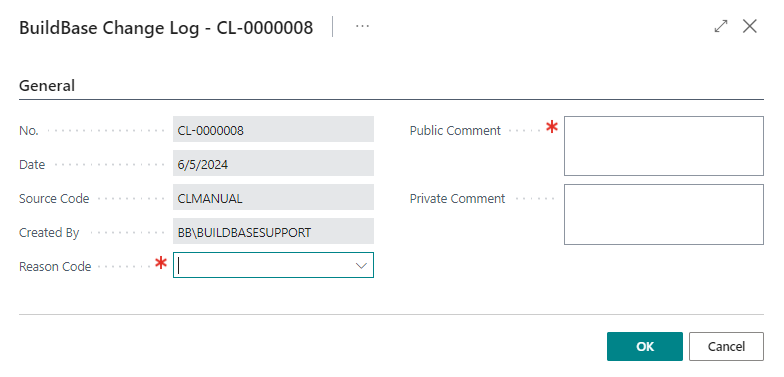
In the BuildBase Change Log screen, fill in all the required fields
- Reason Code: This is the reason for changing the purchase order. This list is customizable for each builder.
- Public Comment: This comment will appear on the purchase order.
- Private Comment: This comment will NOT appear on the purchase order and will only be available on internal reports.
Once you click OK, you will now be processing a change log and any changes you make to the job planning lines will now be flagged with these comments. You can tell if you are process a change log by going to Process and you will see "Stop Change Log" Instead of "Start Change Log".

You can now modify the job planning lines to make the adjustments that you need to make on the purchase order

Once you are done making your changes you need to stop the change log. If you forget to stop the change log, closing the job planning line screen will automatically stop the change log.
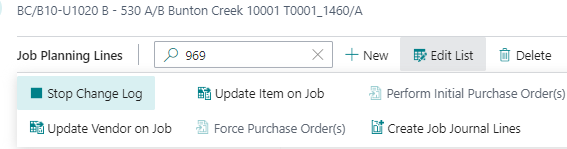
The purchase oder will now be in an open status. If you open up the purchase order you will see the details of your change log. This clearly states the changes from the original purchase order to the vendor once it is released to them.
FAQ
- The purchase order does not have any payment terms
- If a purchase order does not have any payment terms, then this means that vendor did not have any payment terms. First you need to update the payment terms on the vendor, then you need to make sure the purchase orders are in an open state then open up a support ticket with BuildBase and fix the missing payment terms on the purchase orders.
