Creating Styles/Pallets/Storyboards

Styles, sometimes referred to as pallets and storyboards, are collections of items that have been predefined by the Builder that are applied to a model to configure things like color, flooring and other finishes.
Creating a Style
For styles to work, there needs to be both an item in the item library configured for the style and the style configured in BuildBase Sales.
Item Library Configuration
Item Attributes
In order to use styles, the builder must first configure an item attribute that will be applied to the style.
Search Dynamics Business Central for Item Attributes

Once you have made it to the item attribute screen click + New.
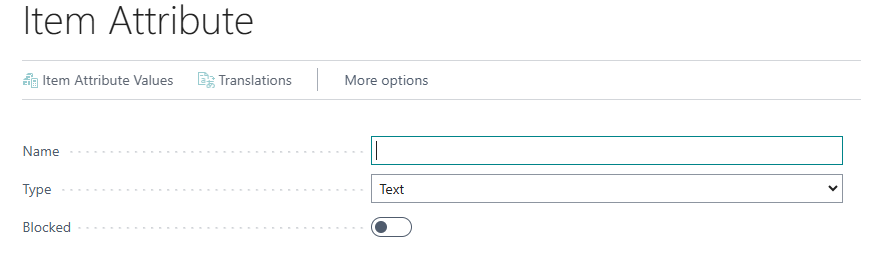
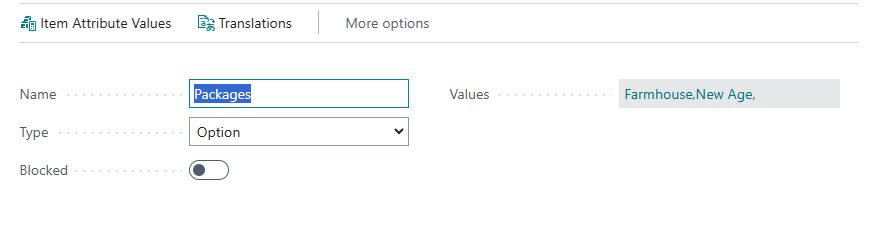
Enter the following values
- Name: Packages
- Type: Option
- Values: The names of your styles
Style Configuration
Step 1: Create the item in the item library
The style item is typically plan specific which will make the item number start with the plan specific ID followed by the style name. An example would be the farmhouse style for plan 1460. The item no for this would be 1460_FARMHOUSE.
Assign the item category code that has been assigned to you for styles. This is typically "Style".
Add the attribute for the style and apply the correct value for that style.
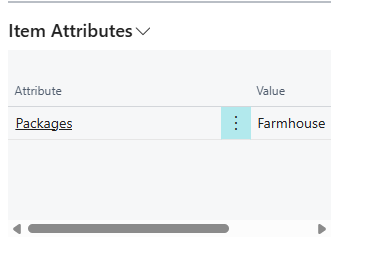
There should be one item for each style that template has

BuildBase Sales Configuration
In BuildBase, click the sales icon and then product library
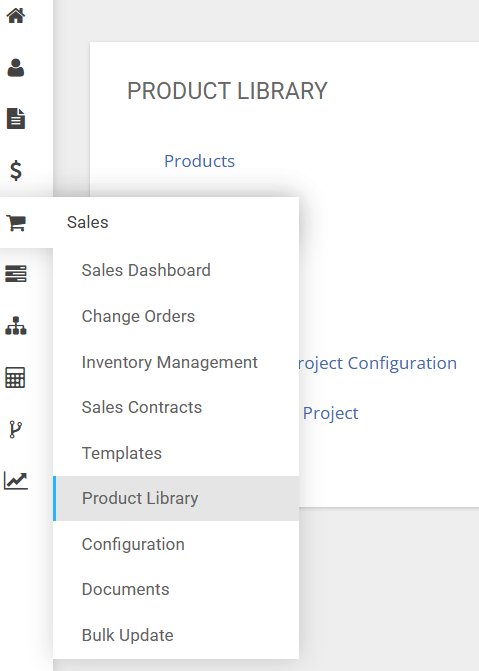
Then click on styles, this will open up the style list. Then click "create a new one"
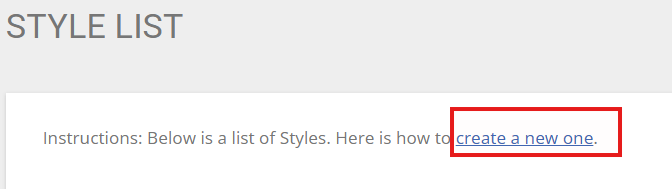
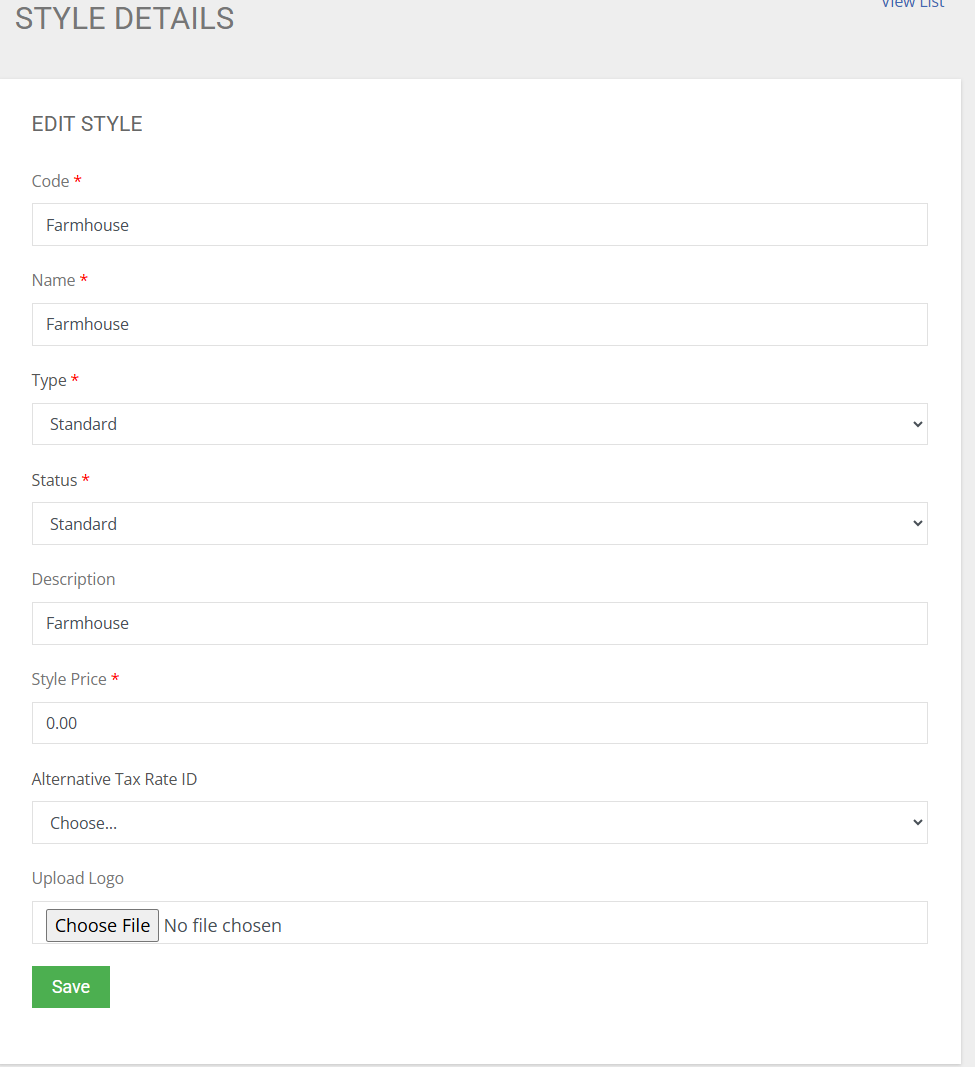
This will show the style details screen. Enter the following information into the form
Code: This is the name of the attribute on the item library that was create in the above step
Name: The name of the style
Type: Standard
Status: Standard
Description: A description of the style
Style Price: If there is a sales price that will be added to the lot price if this style is selected
Alternative tax rate ID: If you are going to override the client tax settings
Update Logo: If you have an image that represents this style (Optional)
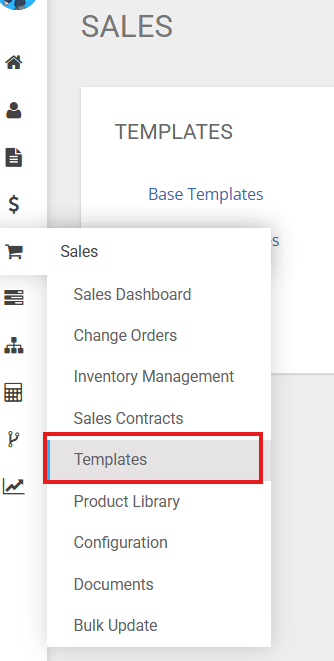
Then add this style to the base template in BuildBase Sales. Click the sales icon and then click templates. Once the templates screen loads, click on Base Template.
Open up the template that you want to add the style for. Scroll down to Base Tamplte Style and add the style to the base template list.
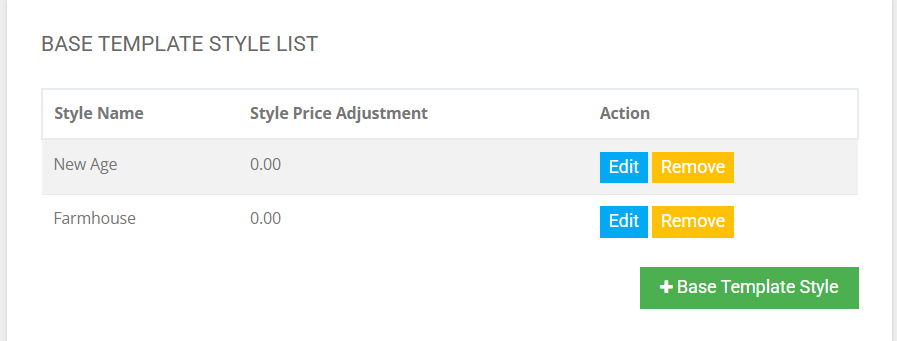
The styles will now be available in sales to add to the unit.
