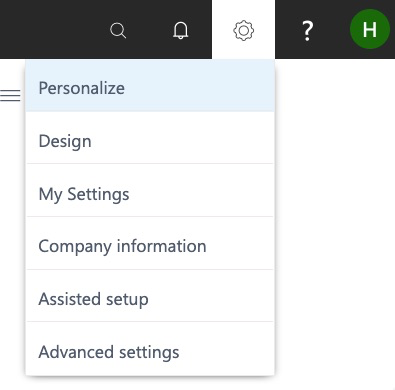
Dynamics Personlization

This feature allows users to choose what they want to see on their main menu screen. For example, based upon my user access role, I have been granted permission to view/use the applications seen here:
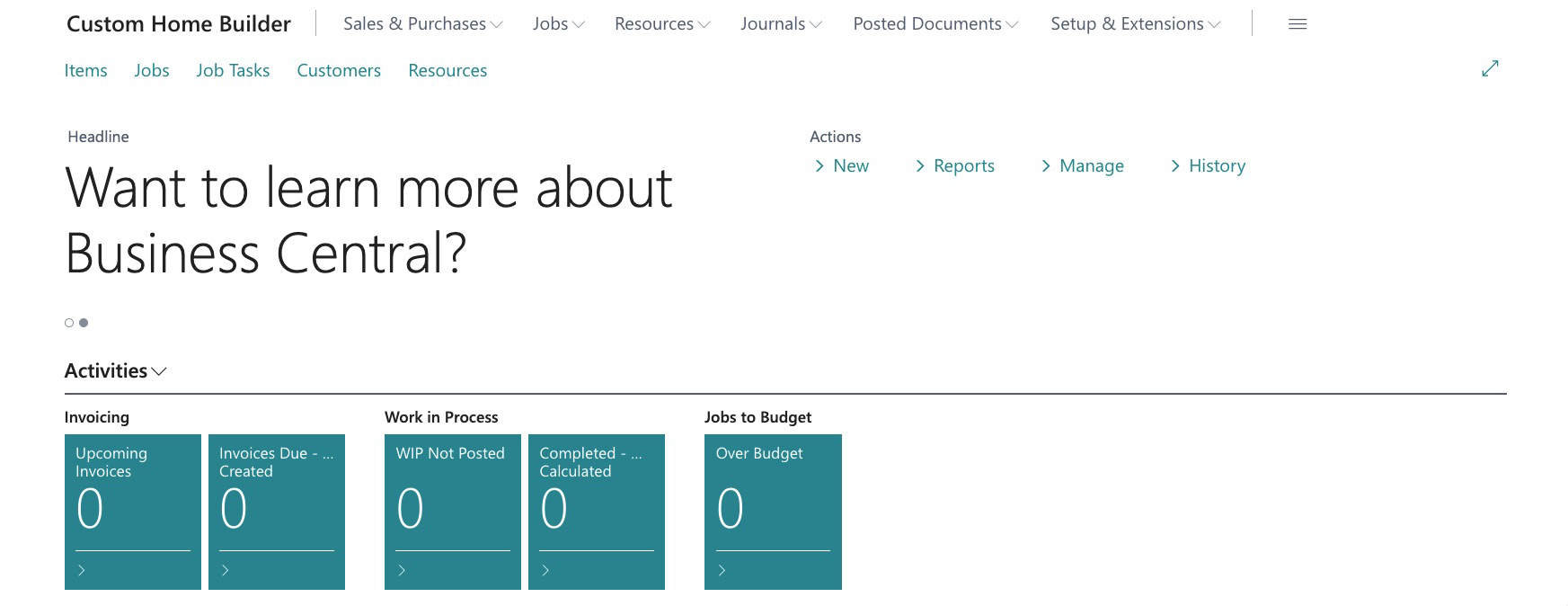
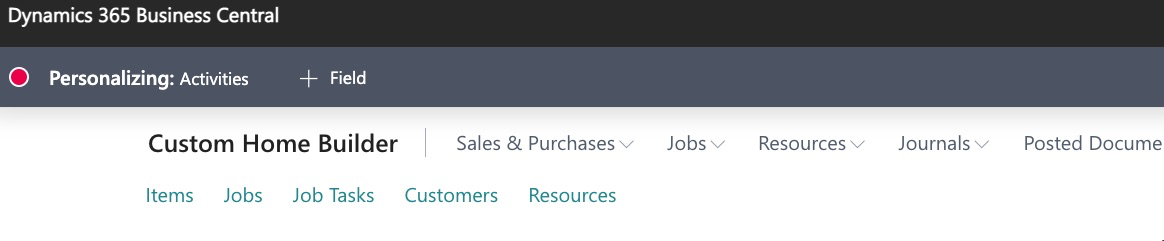
Personalization allows us to modify what we see, this is what the personalization mode looks like:
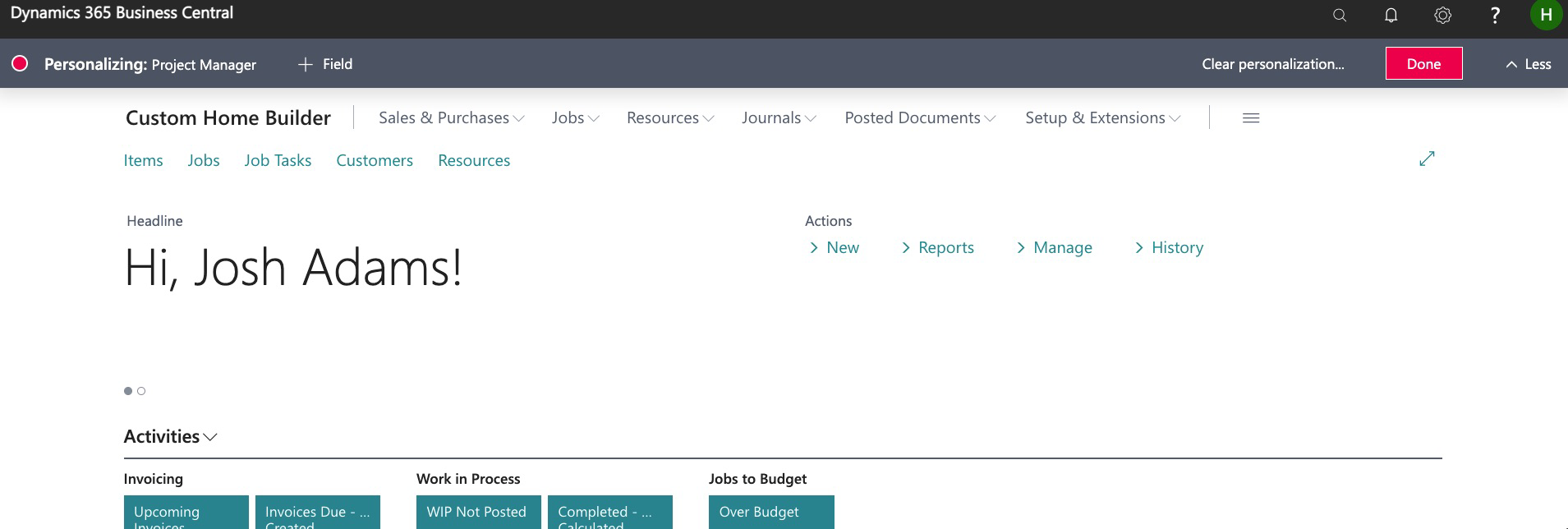
Here we can hover over each function and have the ability to move or hide:

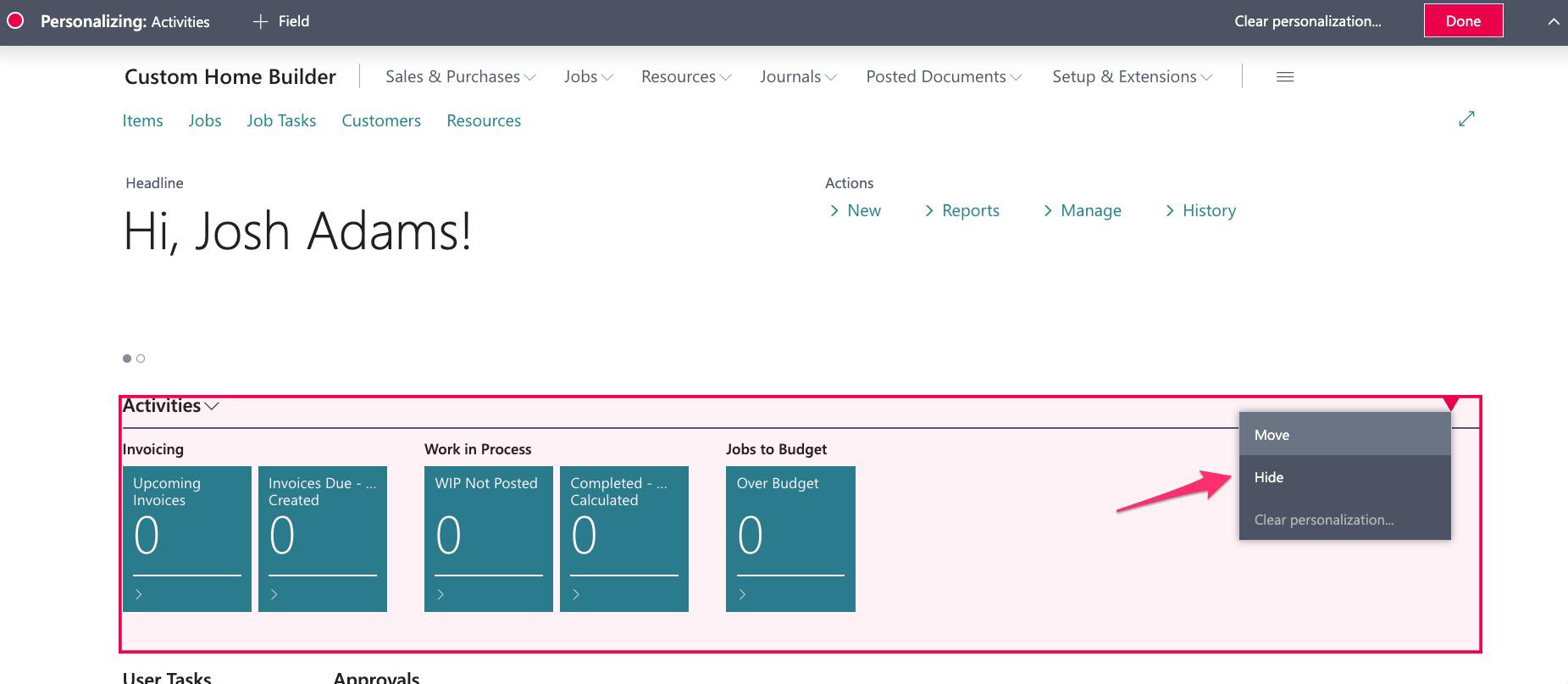
This also works with dashboard items:
We can actually hide and move menu buttons.
BEFORE:
AFTER:
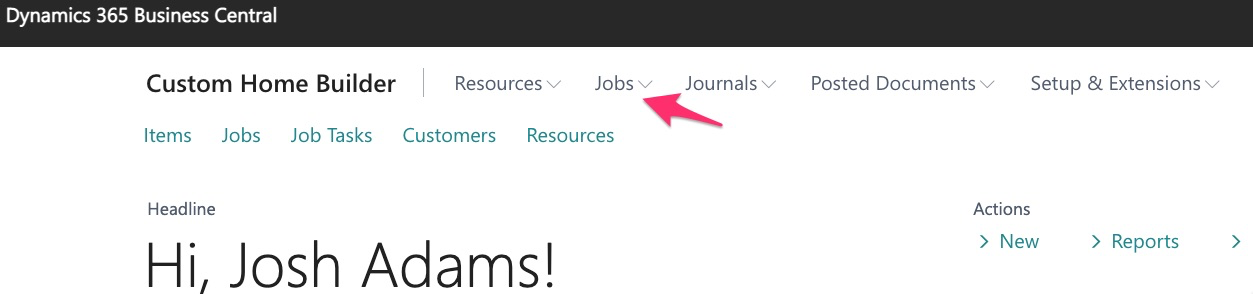
We completely hid sales and purchases and moved resources to the left of jobs.
There is also an option to add more fields that will be much more useful as we get into items:

A user can actually remove everything except for the functions they need:
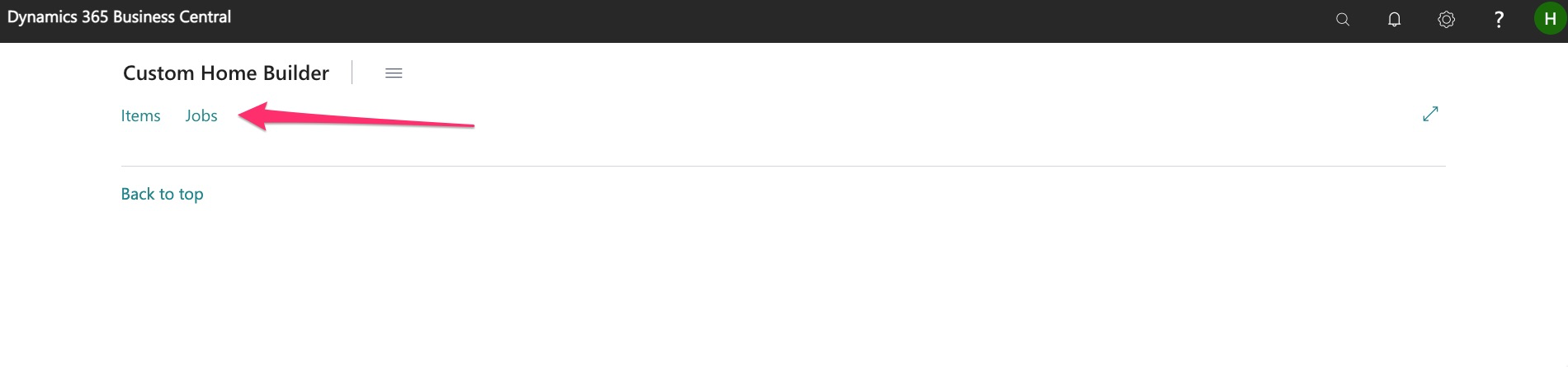
However, it is recommended that you do NOT hide functions to this extent until you use the system consistently in order to determine what functionality may be needed.
Design
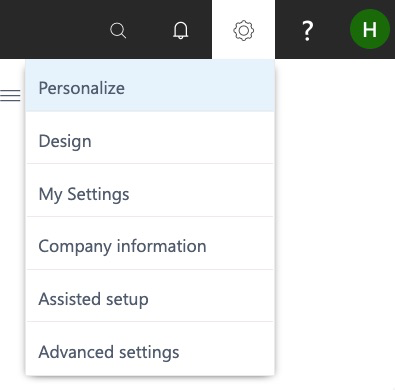
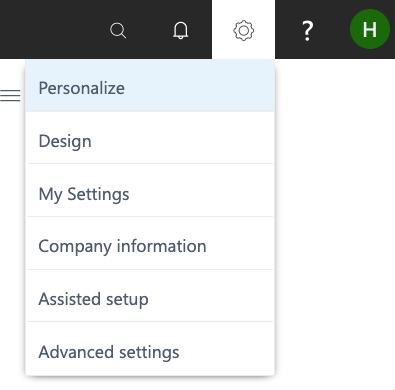
This function allows you to adjust your view based upon the device you are using (laptop, tablet, etc.):

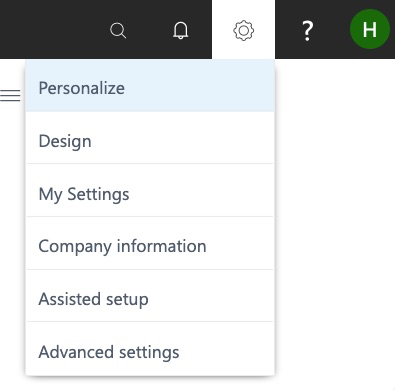
My Settings:
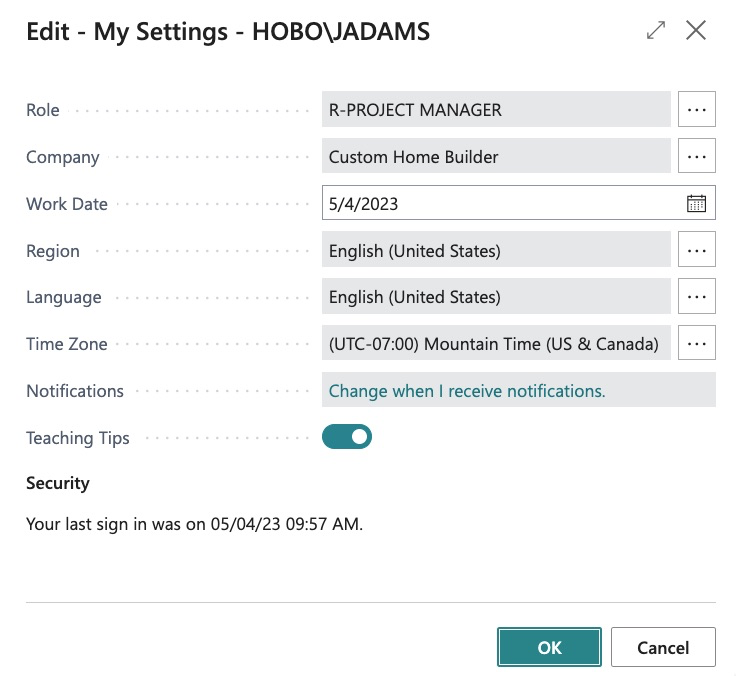
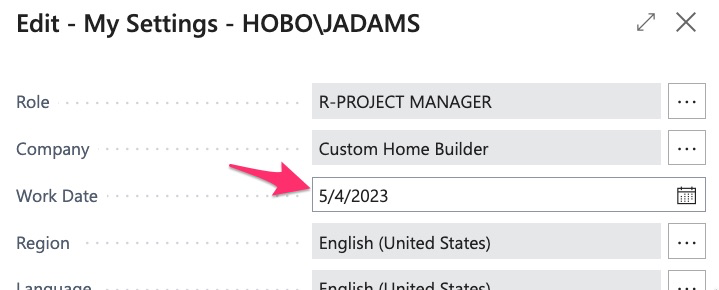
This application allows us to change the region, time zone, etc. As well as the company we are working in:
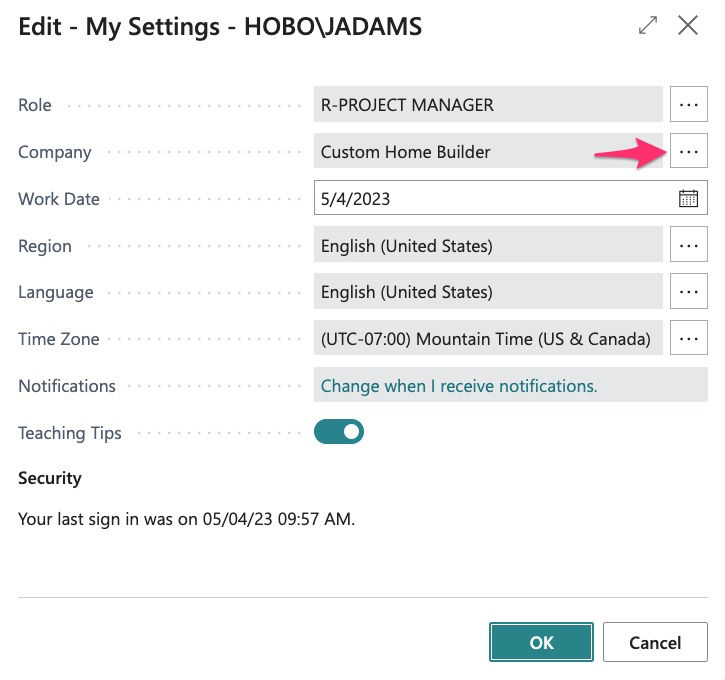
If your organization has multiple companies, this allows you to navigate to all companies:
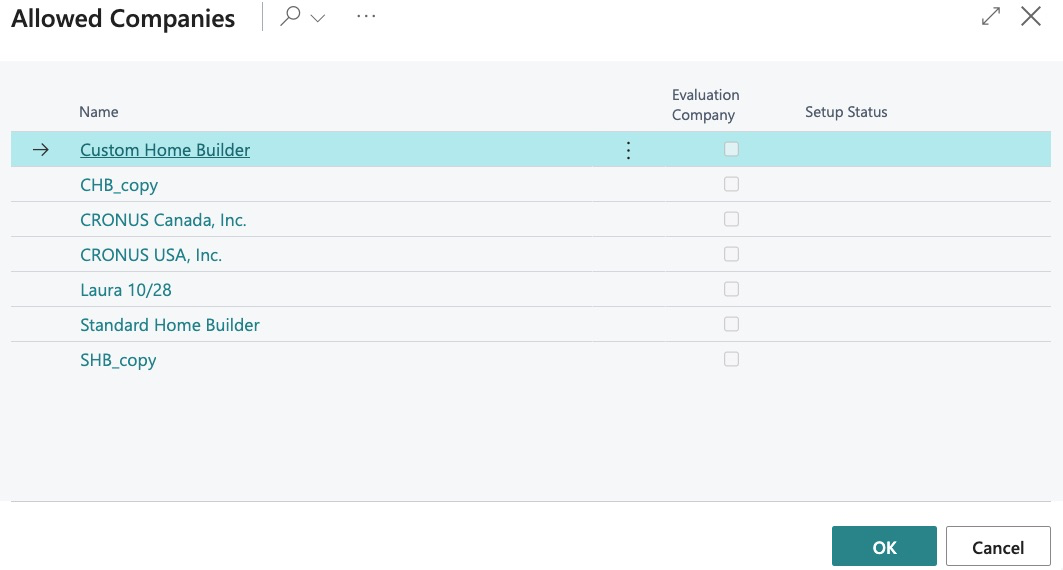
We now see a list of all the companies I have access to and can switch as needed:
The ability to change the work date from the default (as at today), may also be used but this is typically for high level accounting practices – MOST users will always ONLY work as at today’s date:
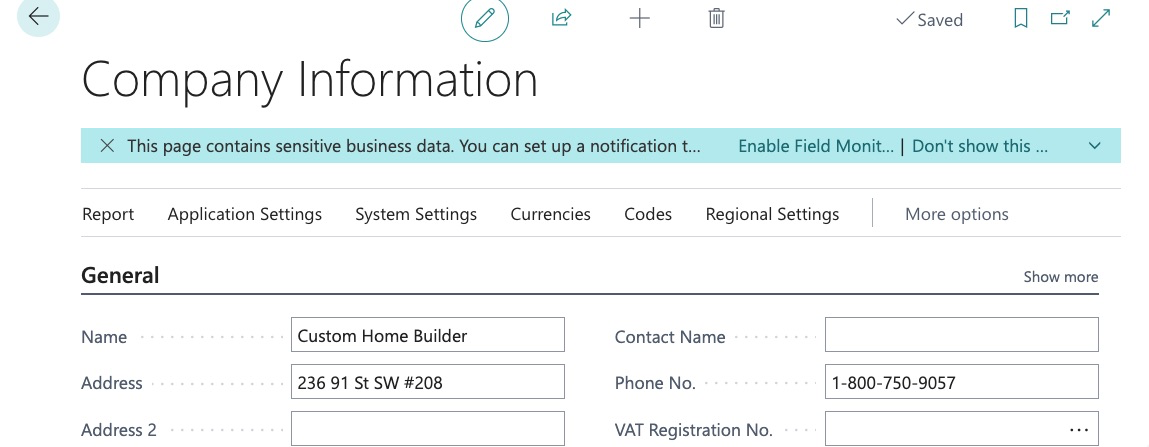
Company Information:
This contains all the information about the company we are working with:
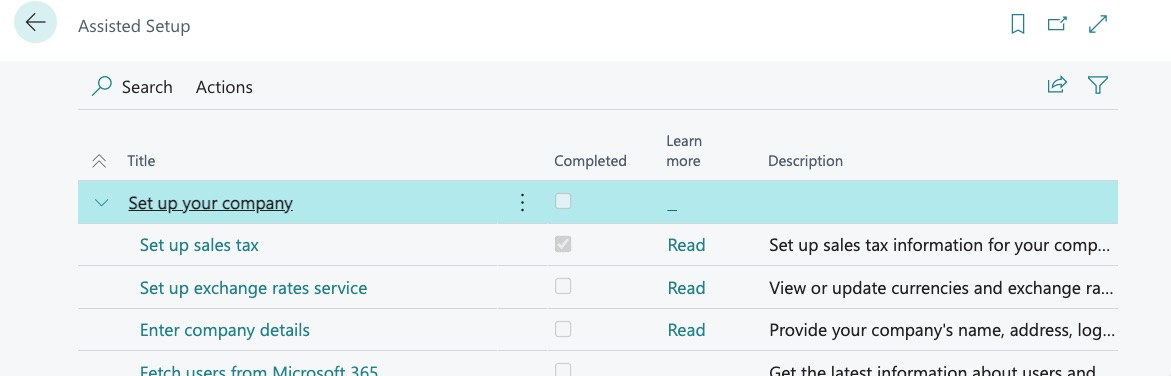
Assisted Setup
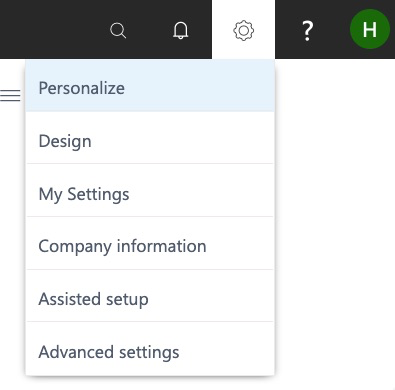
This feature allows us to select from a variety of topics and set them up with help from tutorials:
Advanced Settings