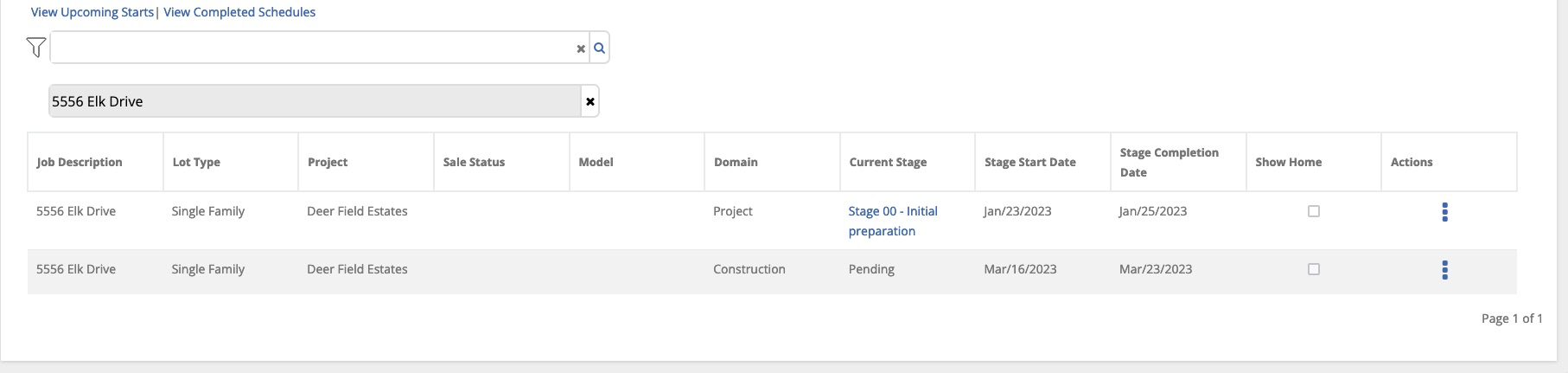
Construction Dashboard

The construction dashboard is a quick view, by stage, of you under construction jobs.
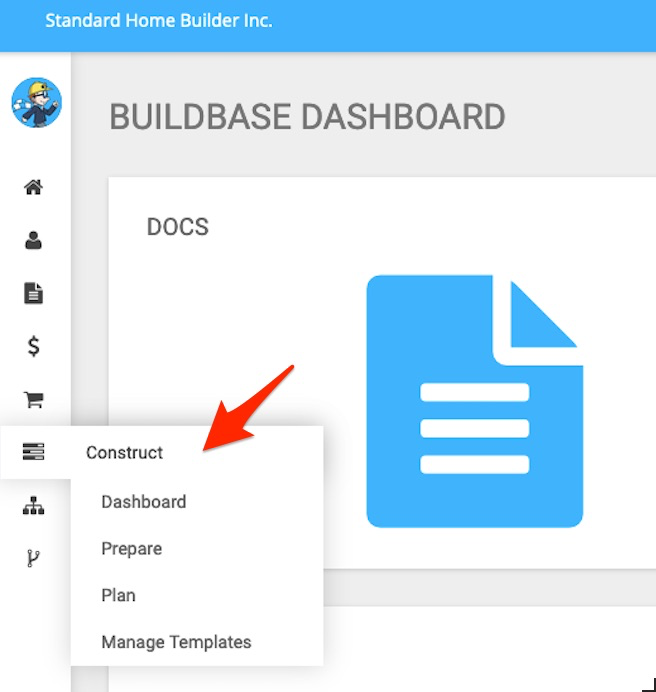
The Construction Dashboard allows us to view/update existing schedules.
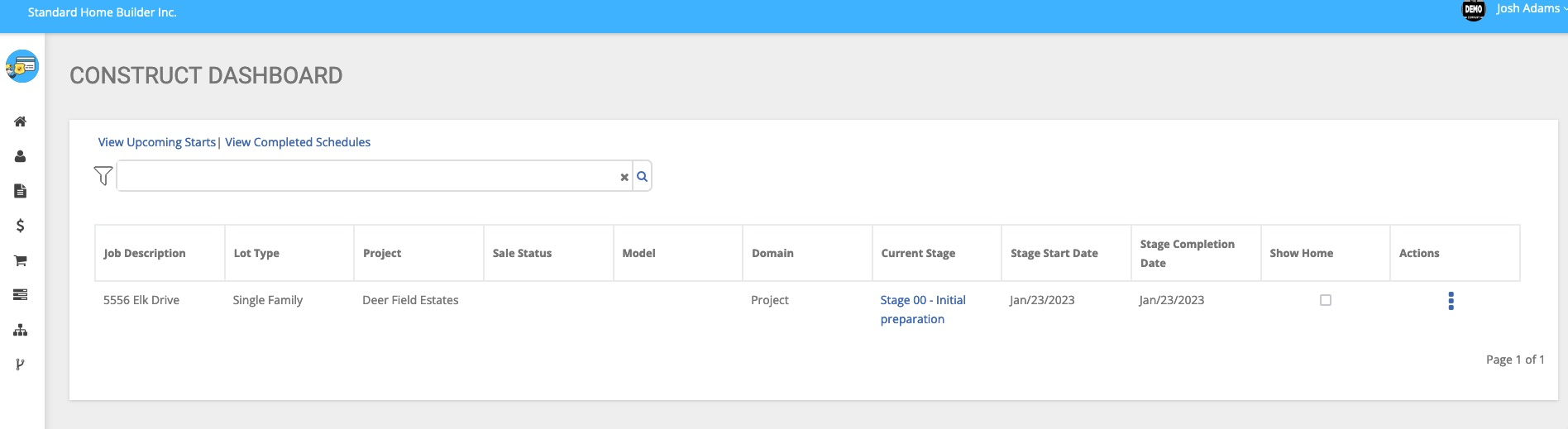
By default, the report shows all jobs that have assigned schedules which have been started, meaning a schedule template has been assigned, and the first stage has been “started”.
The Dashboard also allows us to view “Upcoming Starts”:
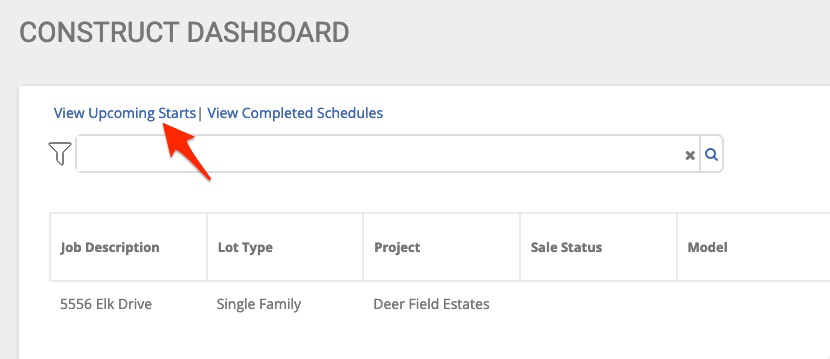
When selected, a new browser tab appears with a list of jobs that have a “Stake Date” (start date) in the future:
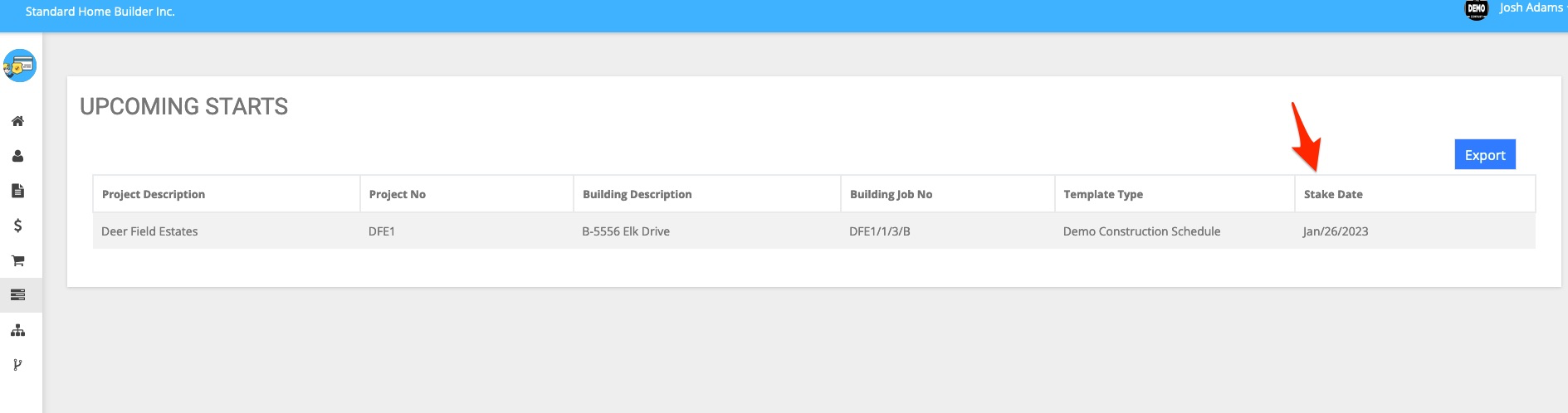
Above we see the same address we saw in the dashboard. This is because this schedule has been progressed, meaning the first stage has been started however, the first construction task in the schedule “Stake Date” is not scheduled to start until a date in the future.
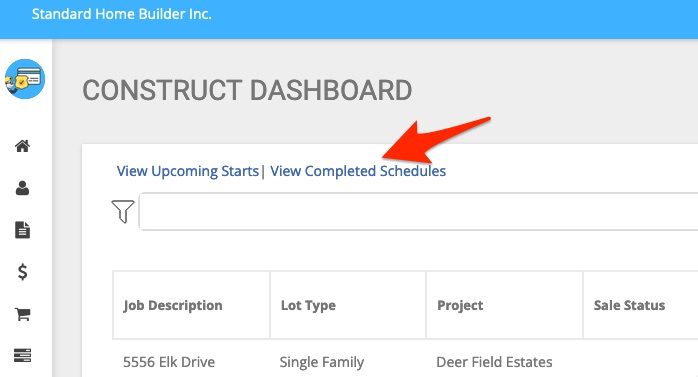
In addition to viewing upcoming starts, completed schedules may also be seen:

The Dashboard also contains a filter which allows us to search for schedules by:
Project
- Domains or Categories of Tasks
- Stages
- Schedule Templates (find all schedules that use a specific template)
- Lot Type
- Delayed
- Pending Buildings
Now let’s review the fields displayed for our current active schedules:
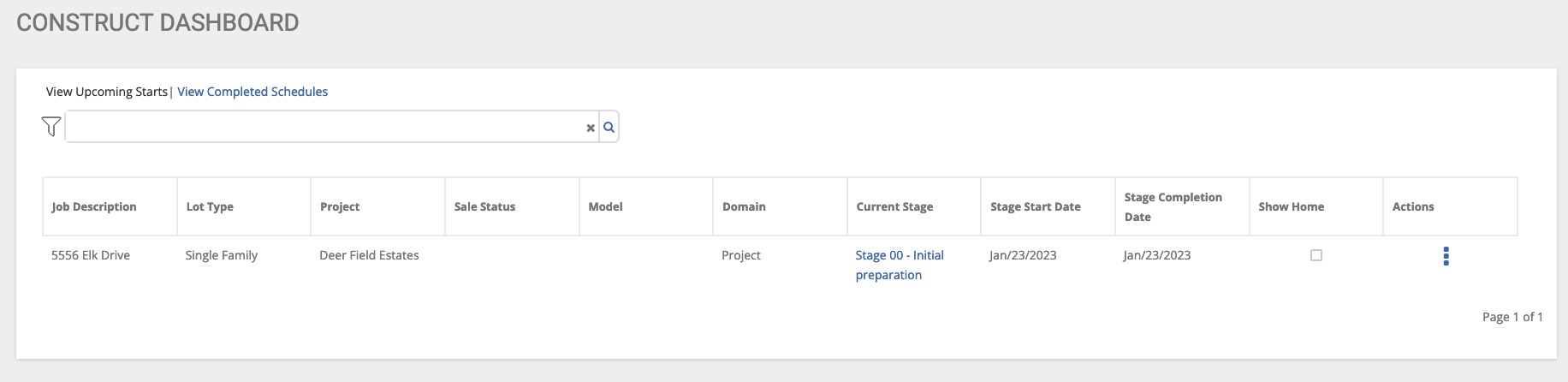
From left to right, the first few fields simply give us information about the job. Address, lot type, project, sales status (sold or available), model (plan), and domain (category of tasks).
The “Current Stage” field in the Construct Dashboard is drillable:
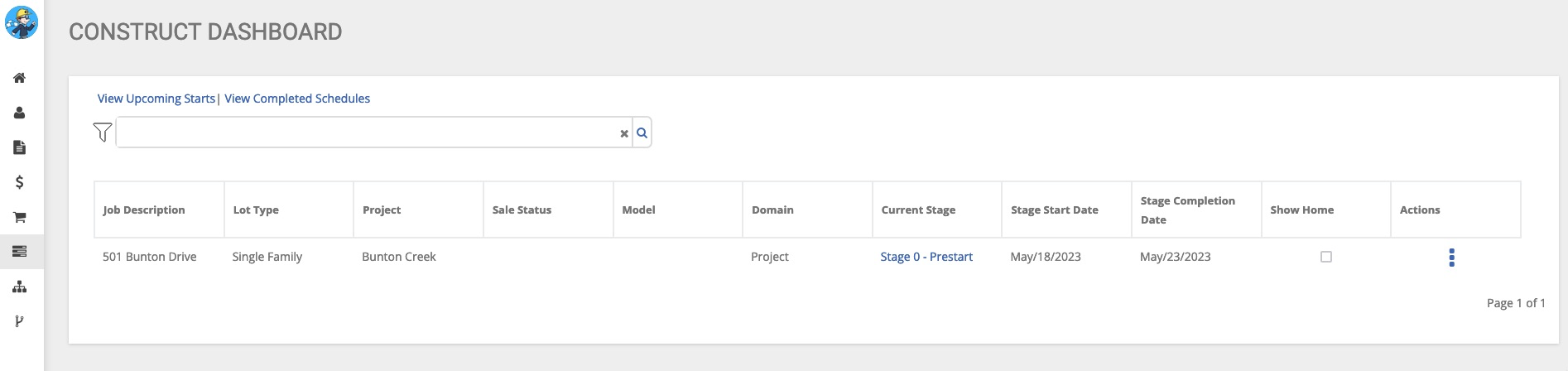
Here we can see that this home is currently in Stage 0 which is the “Prestart Stage”
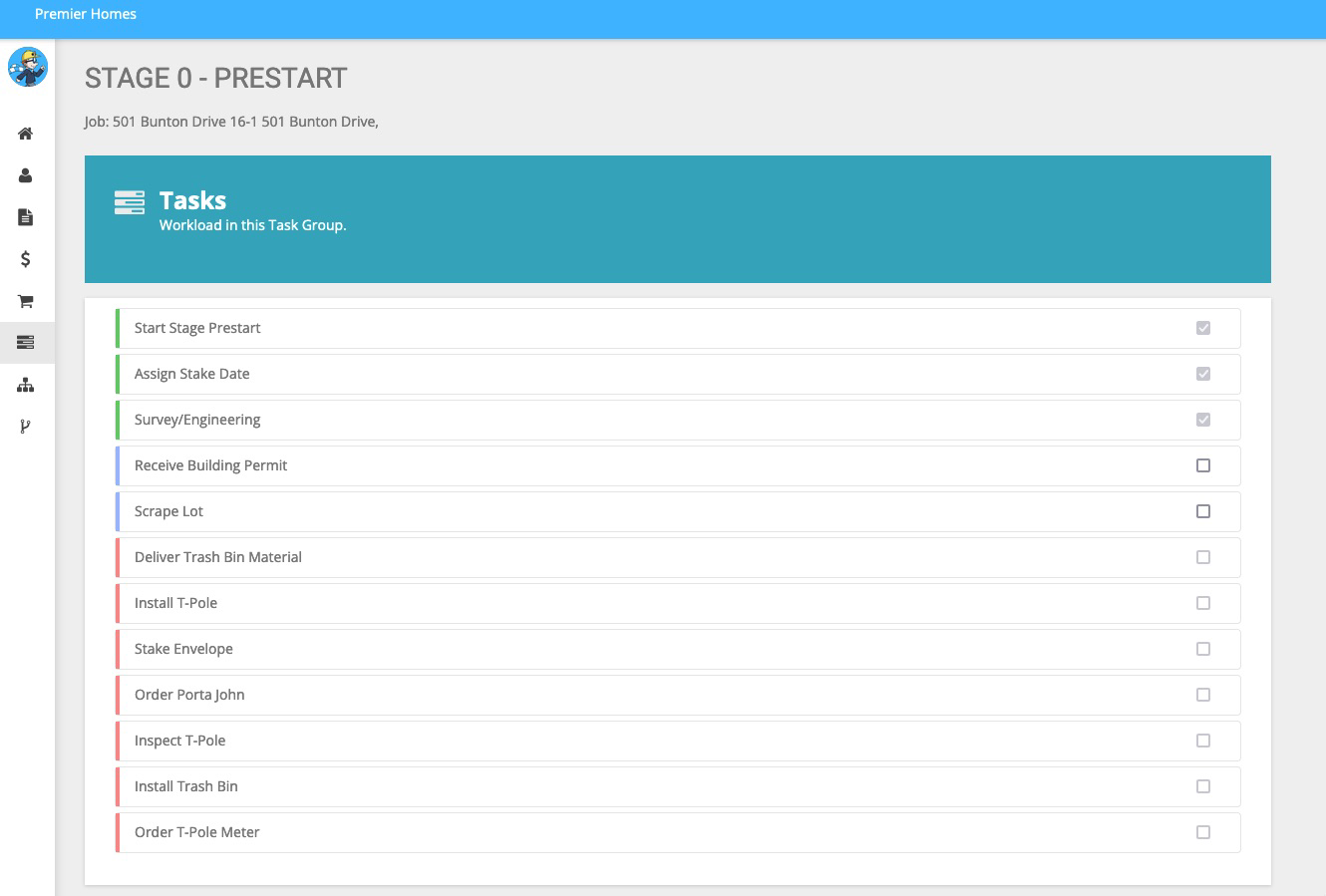
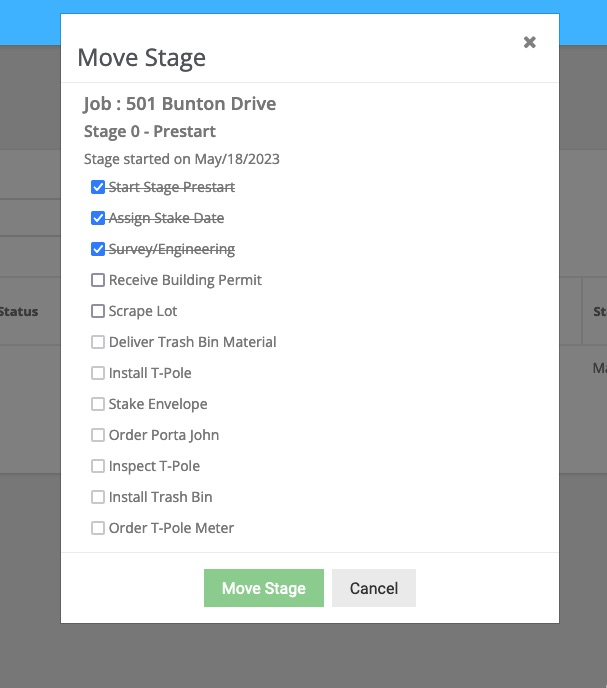
We can also see all the tasks in this stage, as well as their current approval state. In this example, the next 2 tasks: “Receive Building Permit” and “Scrape Lot” must be approved before the next tasks are approved (see color coding).
I can approve a task by clicking the check box:
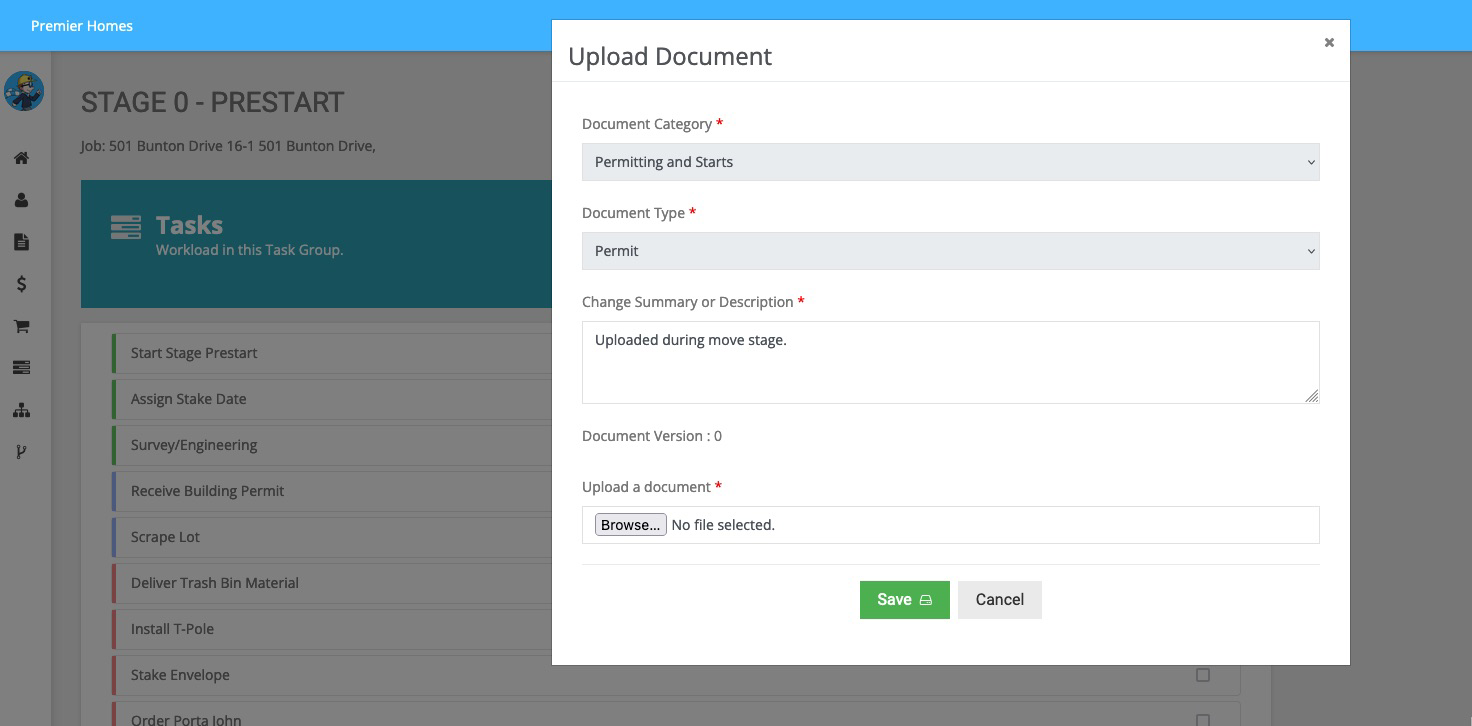
Here we can also require a document or image by uploaded at time of approval (this is customizable).
Back in our dashboard:
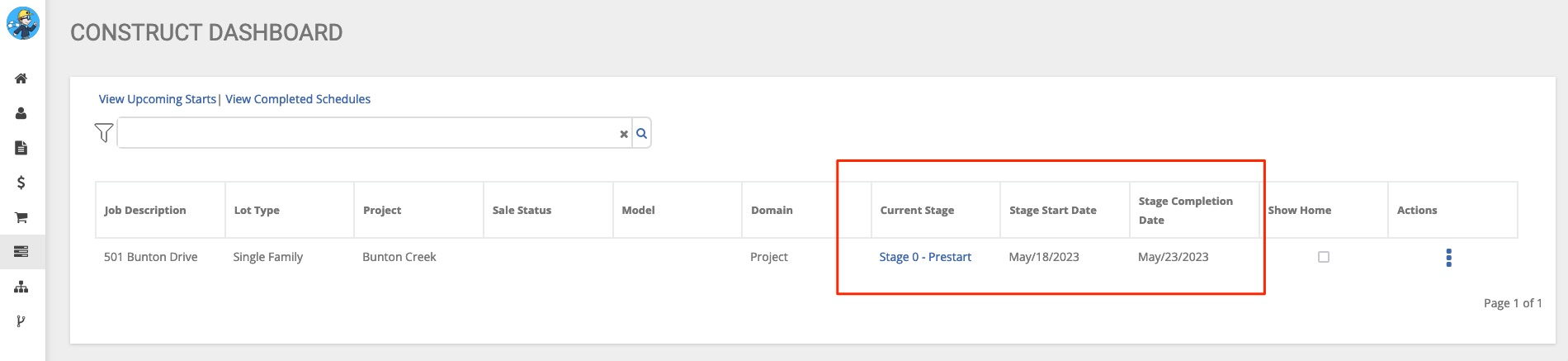
We can see the stage start date and expected completion date. (If the stage has not been started, we will see the assigned start date here).
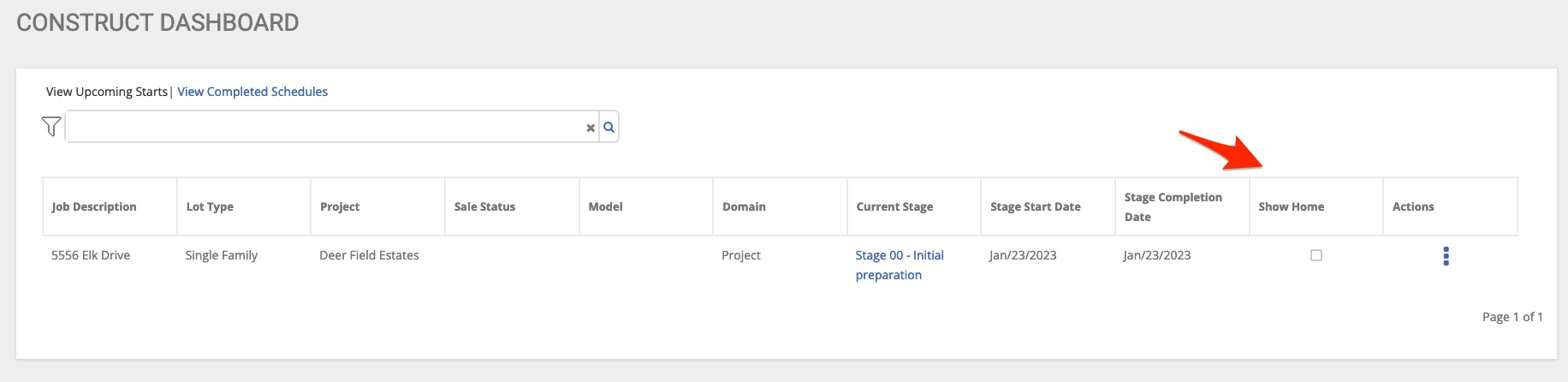
The “Show Home” field here lets us know if this is a show home (model home):
Icons
The dashboard also contains quick Actions that include everything a super needs:
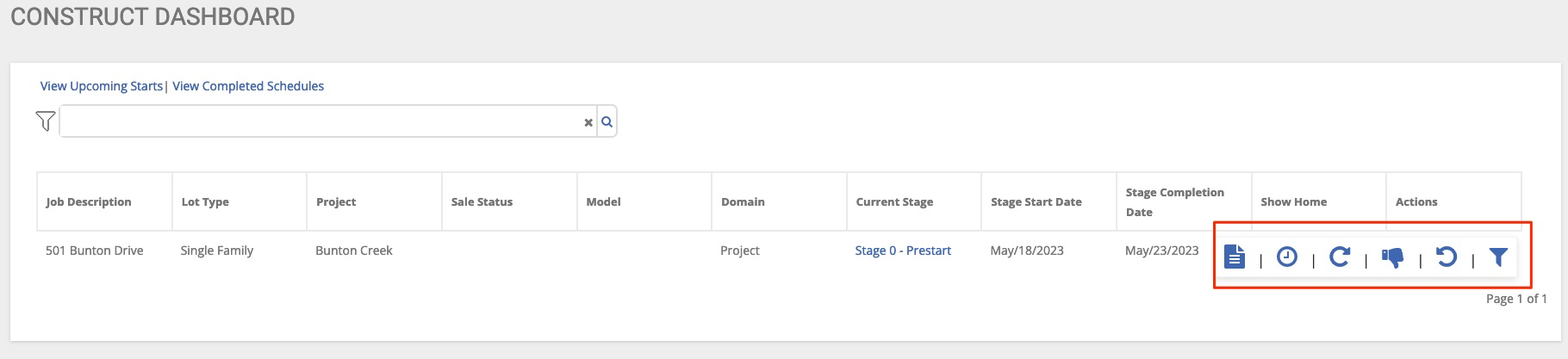
Documents Icon
Selecting this action opens a new browser window and takes us directly to the “Docs” application and starts us in the “Building” for this job:
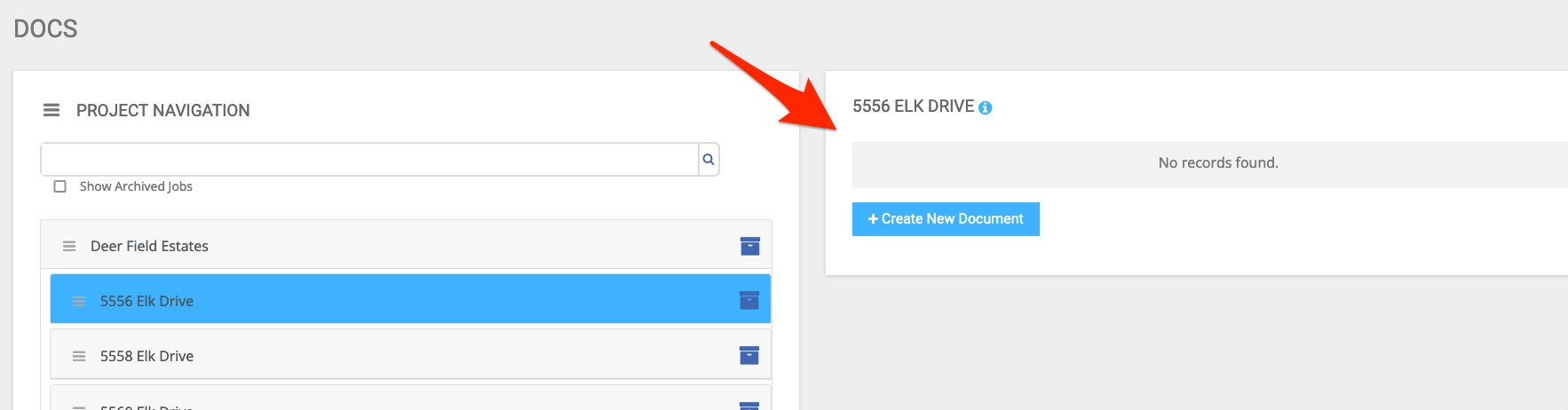
In this example, we see no documents have been added to the building. Next, we can expand on the building, and check to see if there are documents within the unit(s):
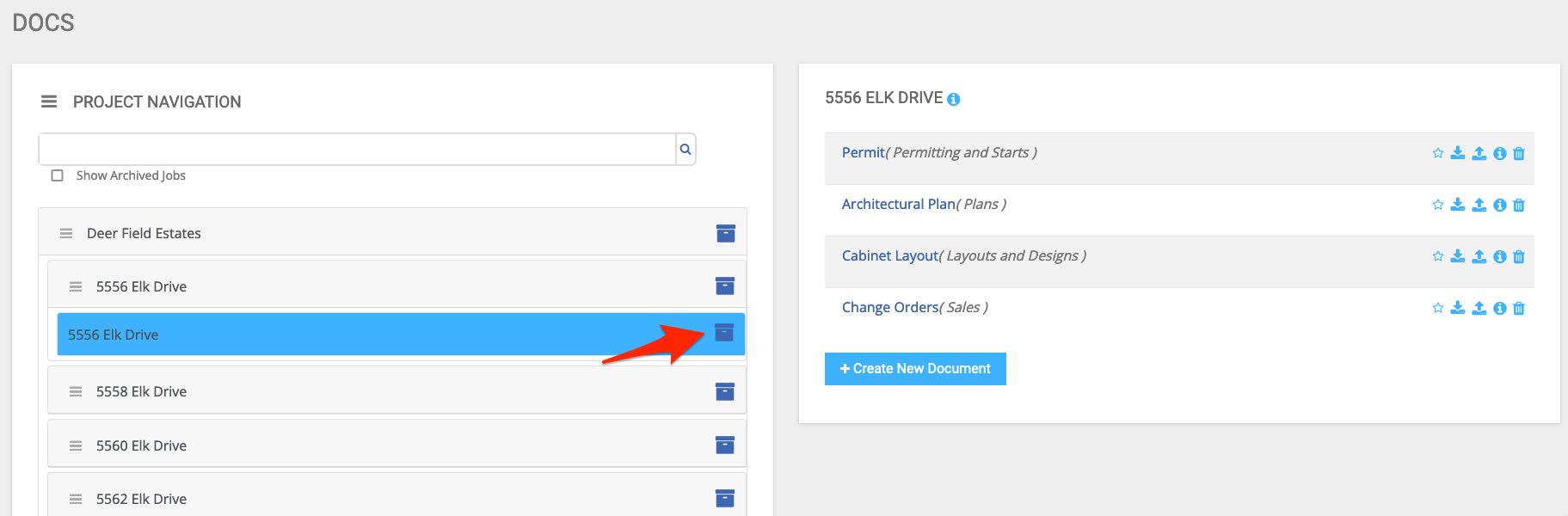
Now, we can view/edit the documents within this unit.
View Schedule Progress
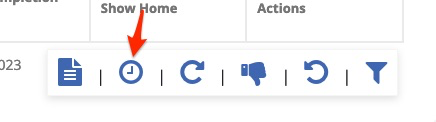
When selected, the “View Schedule Progress” icon gives us a new pop-up screen. The header provides detailed information about this job including address, model (plan), and projected completion dates:
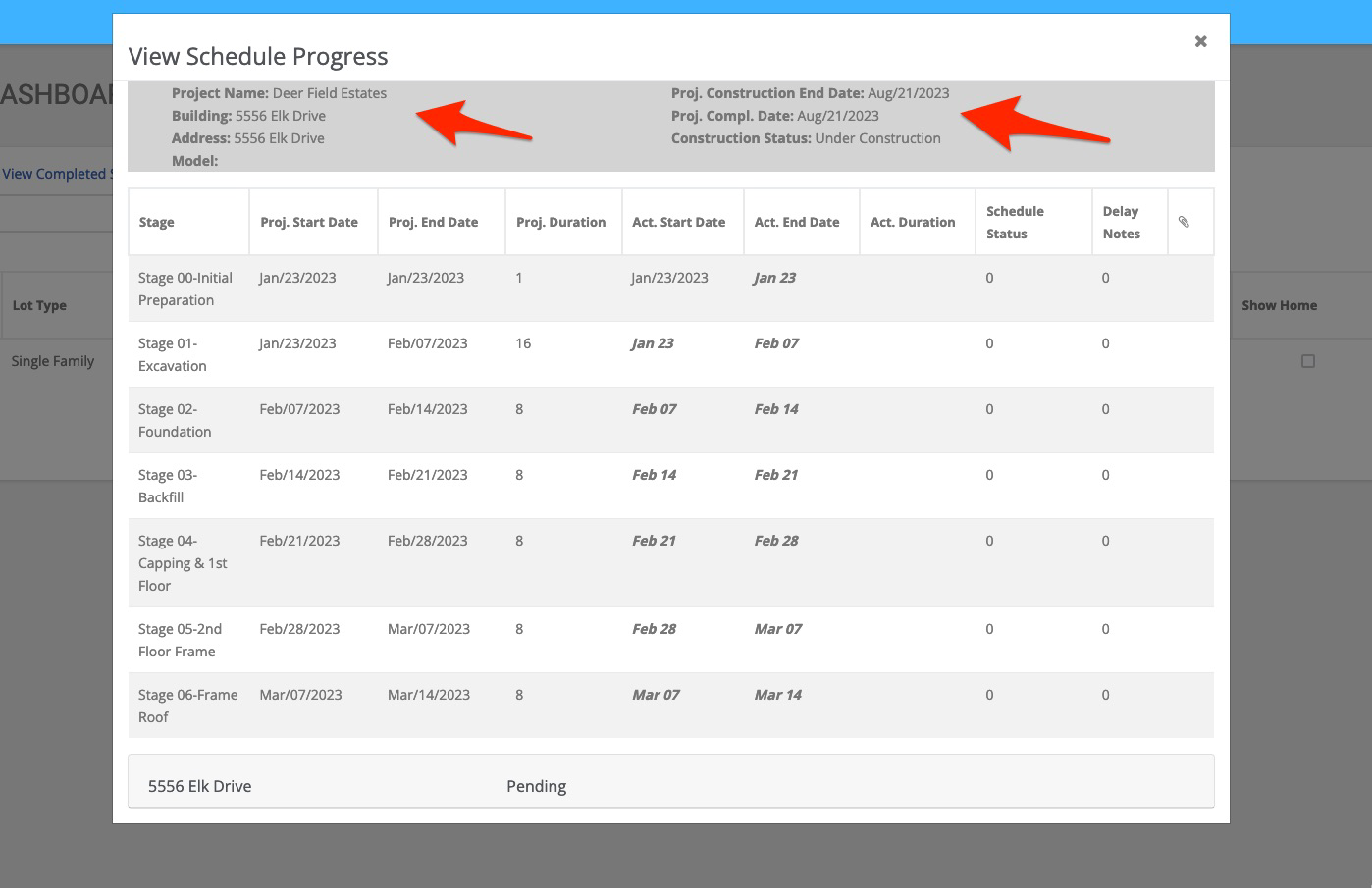
The report also includes both projected and actual completion dates for all the stages (tasks) in the schedule.
Move Stage
When selected, the “Move Stage” feature allows us to approve tasks in the schedule:
Filter
Selecting the filter will show you all buildings and units associated with the job.