Reviewing and Triaging Warranty Requests

Reviewing and triaging a warranty request involves understanding the issue reported by the requester and determining how it should be handled.
Requests may be received through email or other channels. Regardless of the source, the goal is to ensure the issue is clearly understood and prepared for action. Because workflows may vary across organizations, this section provides general guidance to support consistent review and decision-making.
Key Considerations
When reviewing and triaging a request, consider the following:
- What home or unit does the request relate to?
- Who is the requester, and how can they be contacted?
- What issue is being reported, and where is it occurring?
- When did the issue start, and is it still ongoing?
- Are there photos or supporting documents available?
- Does the issue appear to fall within warranty coverage?
- Is the issue urgent or a potential safety concern?
- Is there enough information to proceed, or is follow-up required?
- Who should be responsible for the next action?
- Are there any notes related to scheduling or access?
Typical Workflow
Step | Action | Outcome |
1 | Review the requester’s description or inbound email | Understand the issue and the requested outcome |
2 | Confirm the related Warranty Job or address | Ensure the request is linked to the correct property |
3 | Determine whether the issue appears warranty-related | Decide whether to proceed within the warranty process or route the request elsewhere |
4 | Assign responsibility | Ensure a coordinator is responsible for the next action |
5 | Set initial status and priority | Place the request in the correct queue and urgency level |
6 | Record any missing information or follow-up required | Provide visibility into outstanding items and next steps |
Reviewing Emails in the Email Journal
For requests received by email, the Email Journal is the primary tool used to review and triage incoming messages.
Email Journal Filters and Views
Users can filter and search emails to focus on items that require review.
Filter | Description |
View | Select from Pending Review, All Emails, Linked, Ignored, or Failed |
Classification | Filter by Automated, Human Request, Reply, Spam, or Unknown |
Status | Filter by Manual Review, Auto-Linked, Failed, or New Request Created |
Review Status | Filter by current review outcome or in-progress review state |
Search | Search by sender address, subject, or email content |
Email Journal Columns
The Email Journal displays key information for each email to support review and triage.
Column | Description |
From | Displays the sender’s email address |
Classification | Indicates the type of email |
Status | Shows the system processing state |
Review Status | Indicates whether the email has been reviewed |
Reviewer | Identifies the user responsible for review |
Subject | Displays the subject line |
Received | Shows when the email was received |
WR# | Shows the linked warranty request, if any |
Triage | Triage option such as Claim for Review, Mark as Non‑Support, or Dismiss |
Actions | Request actions such as linking, creating, or deleting (discussed in the creating requests article) |
Automatic Request Creation
In some cases, the system may automatically create a warranty request based on the sender’s email. This reduces manual entry when sufficient information is available. When an email is received, the system checks whether the sender matches a known contact.
Known Contact with One Home
If the sender matches a known contact with one active home:
- A new warranty request is created automatically
- The request is linked to that home
- The email is attached as the original request record
The system applies default values:
- Status = New
- Priority = Normal
- Category = Uncategorized
Known Contact with Multiple Homes
If the sender is associated with multiple homes, the system attempts to identify the correct one based on the email content.
The system checks for:
- Postal or ZIP Code
- Canadian postal codes (for example, T2P 1A4)
- US ZIP codes (for example, 90210)
- If a match is found, the request is linked to that home
- Community or Subdivision Name
- If a matching name is found, the request is linked to the corresponding home
No Matching Contact or Home Found
If the system cannot determine the correct home, or if the sender does not match a known contact:
- The email is routed to manual review.
Triage an Email
- Open the Email Journal
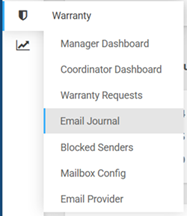
- Filter to emails that require review (such as View = Pending Review or Review Status = New)

- Select an email subject to preview its contents and attachments.

- Review the message to understand the issue and context
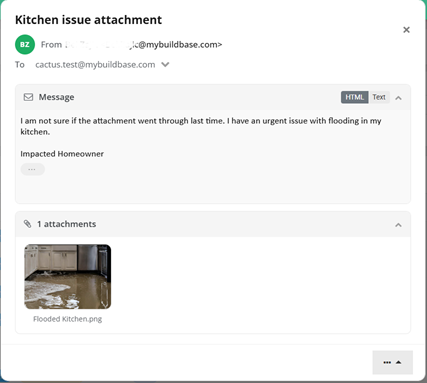
- Select the appropriate triage option from within the email preview using the Action button.
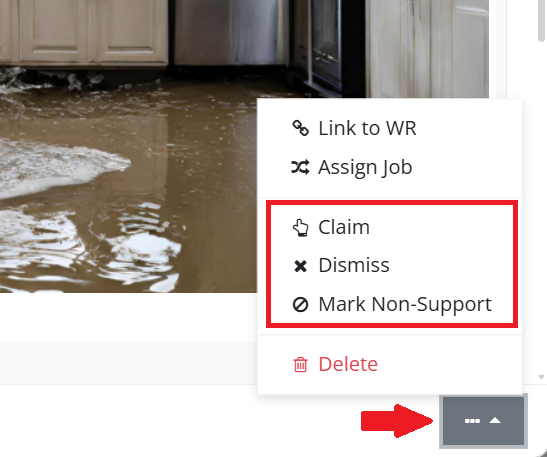
Triage Options
When reviewing emails, users classify and manage messages using the following options:
- Claim for Review — assign ownership of the email for further review
- Mark as Non‑Support — identify emails that are not related to warranty work
- Dismiss — remove the email from active review
After triage, the email can then be acted on by either linking it to an existing warranty request or creating a new request and linking it to a Warranty Job.
