Purchase Order Views

There are two purchase order views in BuildBase
- Standard Purchase Order View: This is your default view when you first open the purchase order page. There is limited information in the purchase order list so that the page is faster. Additionally, once a purchase order has been invoiced and that invoice is approved, the purchase order will no longer appear on this list.
- Archived Purchase Order View: This view can be accessed from the Standard Purchase Order View and contains all the purchase orders, including fully invoiced and paid purchase orders (refered to as archived purchase orders). There is additional information in the list page and the dynamic search is more complex but the screen is a slower to load.
Standard Purchase Orders
The standard purchase order page has all the information that you need
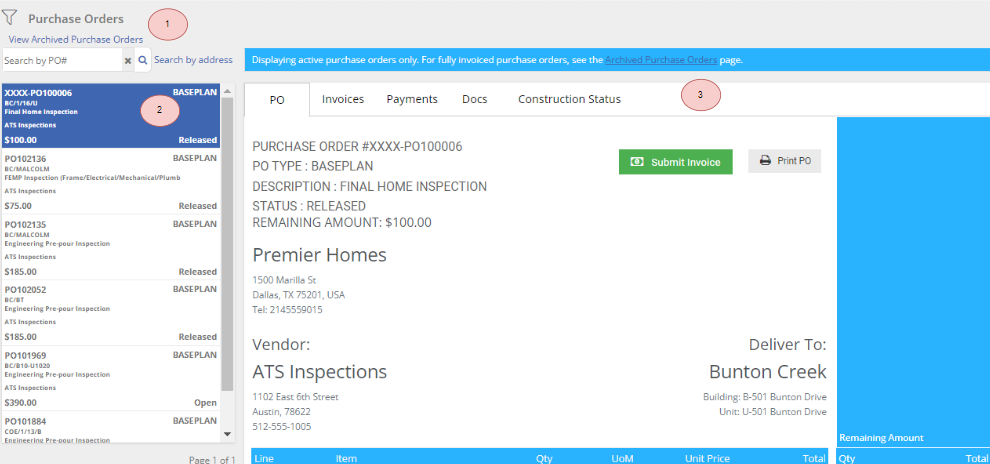
Section 1 - Purchase Order Search
The search section allows you to find the purchase order(s) that you will like to appear in the purchase order list. You can quick search the purchase order number in the search bare or use the filter feature to further refine your search key elements like job address.
Section 2 - Purchase Order List
The list section displays the current results from the search section for your purchase order. This section include key attributes of the purchase order
- PO Number
- Job Number
- Scope
- Remaining Amount
- Type of purchase order
- Status of purchase order
Section 3 - Purchase Order Details
The details section can be accessed by clicking on the purchase order in the purchase order list page.
- PO: This is purchase order details including the delivery address, scope and remaining amounts to be invoiced.
- Invoices: Lists any invoices that have been submitted against this purchase order.
- Payments: List any payments that have been made against this purchase order.
- Docs: Any documents that have been loaded up for this purchase order.
- Construction Status: If this purchase order is assigned to a task, if will be listed.
Archived Purchase Orders
From the standard purchase orders page click either of the archived purchase orders links

This will load the archived purchase orders which includes all purchase orders, including fully invoiced and paid purchase orders.
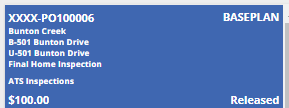
The purchase order list also contains additional information including the project, building and unit details
The search bar above the purchase order list will search any value in the purchase order list, this includes address and scope. If I search 501, I will get all of the purchase orders that have 501 in the purchase order list box
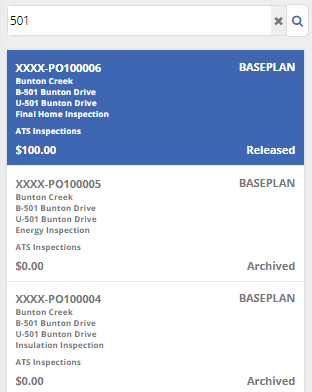
The archived purchase order list has all the other features as the standard purchase order list.
Mobile Purchase Order View
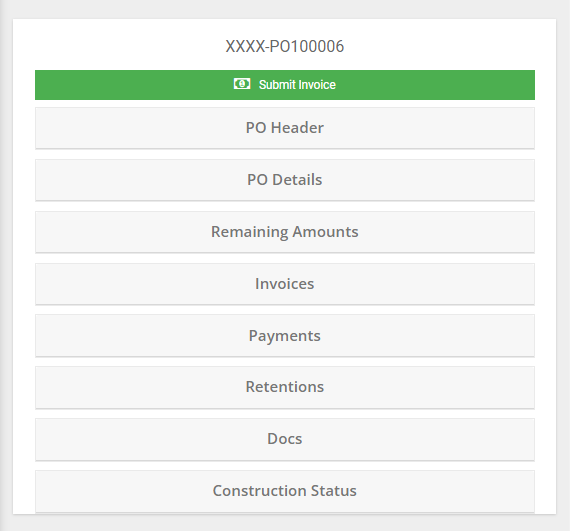
In the mobile view, the purchase order is presented as a list only with no details on the right hand reading pane like in the desktop views. In order to view the details of a purchase order, click on the purchase order number.
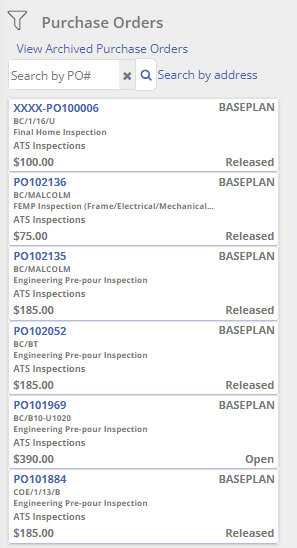
In the mobile view, instead of presenting the purchase order in tabs left to right, the purchase order details is presented in tabs top to bottom. Each section can be opened by click on the section header.