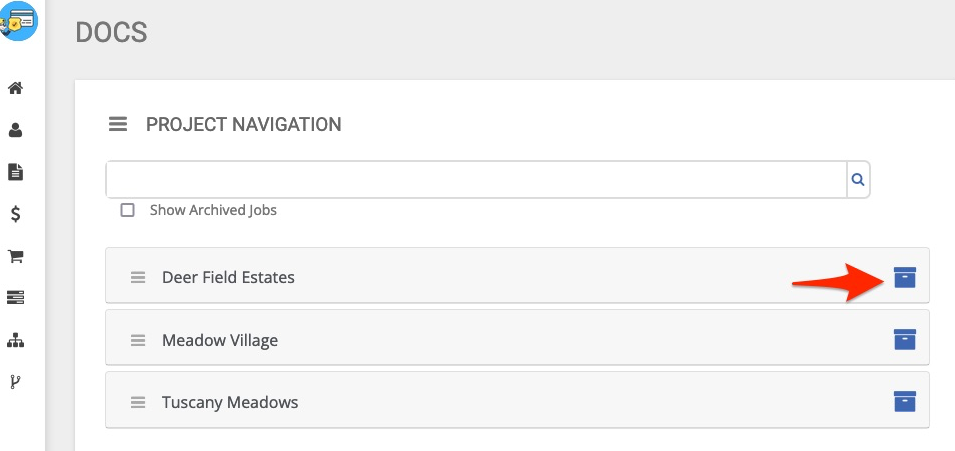
Introduction to Docs

Introduction to BuildBase Docs
The Docs application allows for quick upload and storage of the documents and images that are crucial to any organization’s process.
This Guide Includes:
- Overview of the features of documents
- Action Icons and how to use them
- Tips/Tricks/Best Practices
Features of Docs include:
- Fast upload of documents (forms, drawings, color palettes, images, etc.)
- Ability to suppress specific documents from view for users and user groups
- Ability to automatically attach documents to vendor purchase orders
- Easy to use customizable view
- Powerful archive that includes the ability to track document changes
- Large singular file limit, but no storage limit
With the Docs application, there is no need for third party storage solutions like Autodesk or DropBox!
The Docs application dashboard may be accessed from the system main menu:
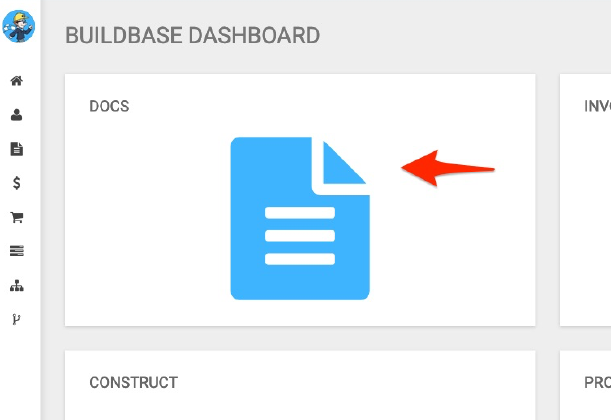
Or from the quick menu:
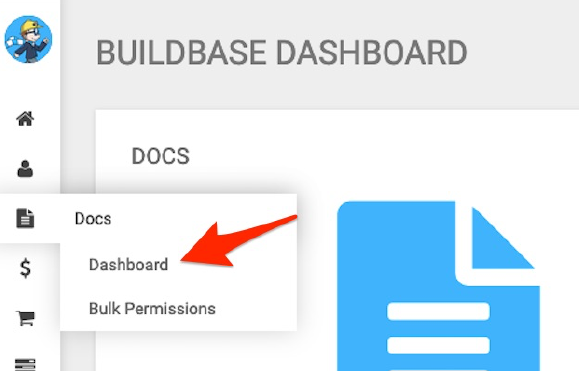
The Docs Dashboard is extremely easy to use. Here we see a list of all active projects:
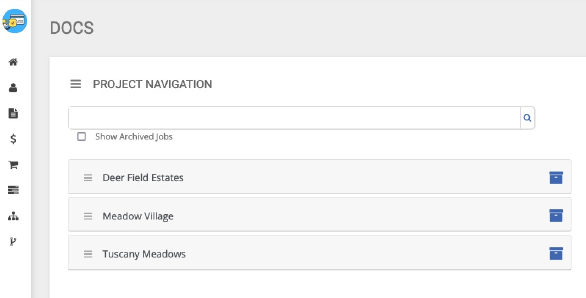
Documents are added at the Project, Building, or Unit level but may be restricted through the Project Management application. For example, your company may choose to upload project specific documents to the project but can restrict documents at the building level. This restriction is managed in each Project, Building, or Unit. In this example, we begin by loading a document into the first project on the list. Simply click the file icon: