Introduction
Administration
Vendors & Partners
Purchase Order Views
Submitting an Invoice
Construct Schedule
Task Notes for Vendors
Payments/Remittance Advice
Vendor Export POS
Project Management
Purchasing and Estimating
Invoicing
Items
Introduction To Items
Navigating Items
When to Create a New Item
Unit of Measure
PO - BoM on Purchase Orders
Cost Model - Budgets
Bulk Item Creation and Modification Tools
Items FAQ
Attributes
Item Costing & Primary Vendors
Classification Codes
Creating Styles/Pallets/Storyboards
Jobs/Projects
Non-Job Purchase Orders
Construct
Introduction To Construct
Apply a Schedule - Prepare
Manage Construction Templates
Construction Dashboard
Delay Notes
Undo Task
Plan - Assign Start Date
Subtasks and Worksets
Task Notes
Sales
Sales Document Configuration
Sales Model Template Configuration
Sales Regions
Update Upgrade/Option Pricing
Docs
Introduction to Docs
Uploading a Document
Configuring Categories and Types
Bulk Permission Assignment
Reporting
Warranty
Introduction to Warranty
Accessing and Navigating the Warranty Module
Dashboards
Reviewing and Triaging Warranty Requests
Creating Warranty Requests
Find and Manage Warranty Jobs
Managing Warranty Requests
Managing Deficiencies and Work Orders
Closing Warranty Requests
Accounting
- All Categories
- Sales
- Update Upgrade/Option Pricing
Update Upgrade/Option Pricing

Sales upgrade pricing for upgrades and options can be updated easily using the bulk import and export tools.
Step 1 - Download
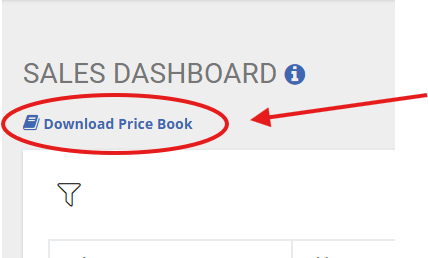
Go to the Sales Dashboard and click on Download Price Book. This will download and excel file for you to edit.
Step 2 - Modify
Open the excel file to edit the pricing. The file includes both plan specific and global upgrades.
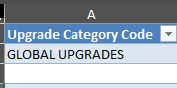
Global Upgrades will have Global Upgrades in Column A
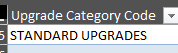
Plan Specific Upgrades will have Standard Upgrades in Column A
Users can update the following fields
- Column I - Sales Price
- Column U - Sales Description: This will be visible on a change order and to home purchasers. It is intended to hold the marketing description and details.
- Column V - BBSalesBlocked: If this is set to true then it will be available in a sales agreements
and change order. If the value is false, then it will not be available in new change orders or sales agreements
Step 3 - Upload
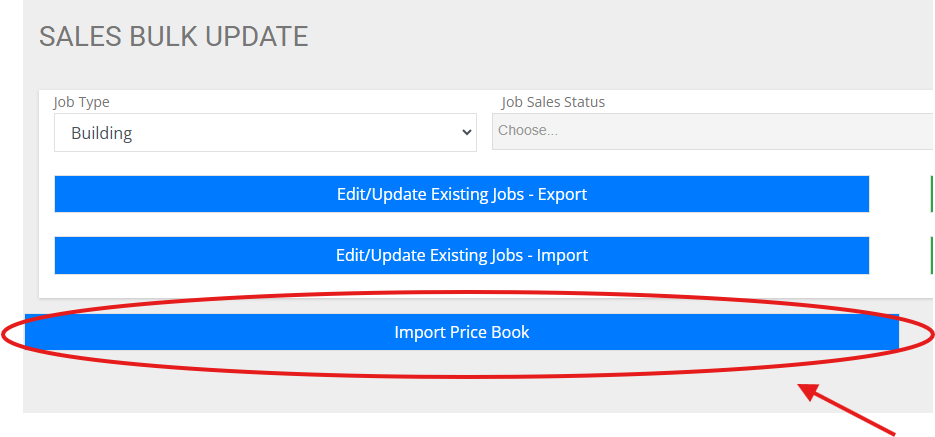
From the sales menu option, select Bulk Updates
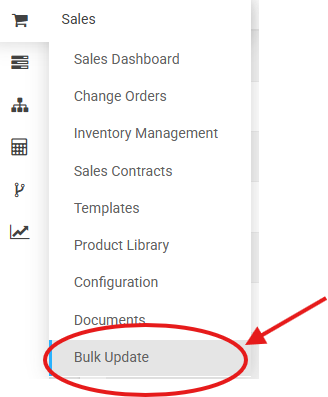
This will bring you to the Sales Bulk Update Screen. On this screen, click the Import Price Book button.