Submitting an Invoice

Submitting an Invoice
BuildBase supports both pay from purchase order (automatic invoicing) and manual electronic invoicing.

On the vendor dashboard, you can find to quick links that will help guide you for which purchase orders will be automatically invoiced for you and which purchase orders require your action.
Manual Electronic Invoices (MEI)
Some purchase order may require you to electronically (inside of BuildBase) submit an invoice. This could be due to the following scenarios.
- The builder partner does not use automatic invoicing
- The purchase order is not connected to a construction task
- The purchase order requires you to enter a consumed value, like cement
- The purchase order requires you to attach a document, like a framers checklist
To submit a manual electronic invoice, open the purchase order and click the submit invoice icon

This will open up the submit invoice screen. From here, you enter all the required information,
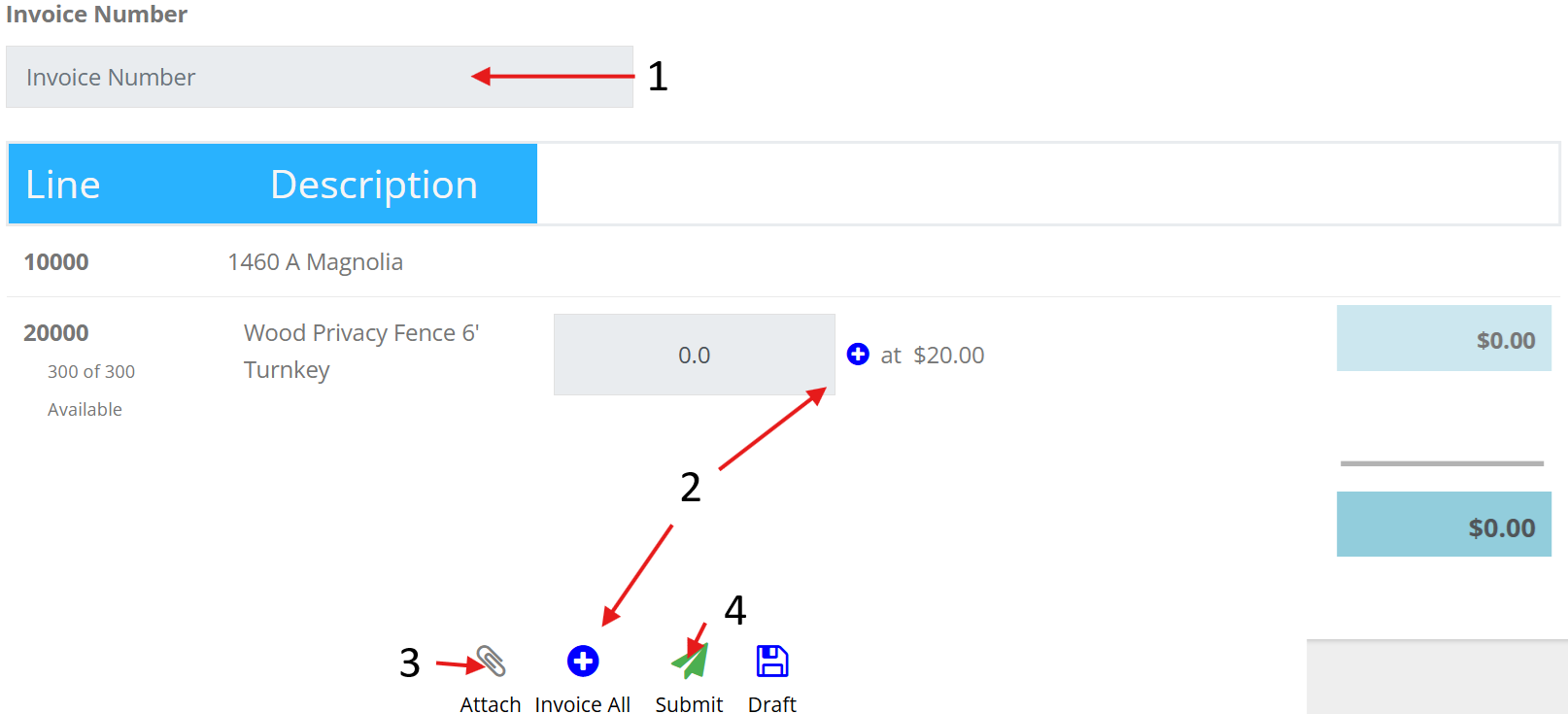
- Enter your invoice number. Invoice numbers cannot be used more then once.
- Enter the quantity to invoice. You can do this by either enter in the quantity in the box, click the plus sign next to the quantity to invoice the full amount of that line or click the Invoice All button to invoice the entire purchase order.
- Click on the attach icon to attach your invoice or other documents as required by the builder partner.
- Click the paper airplane to send the invoice to the builder partner.
This will bring up the final confirmation screen
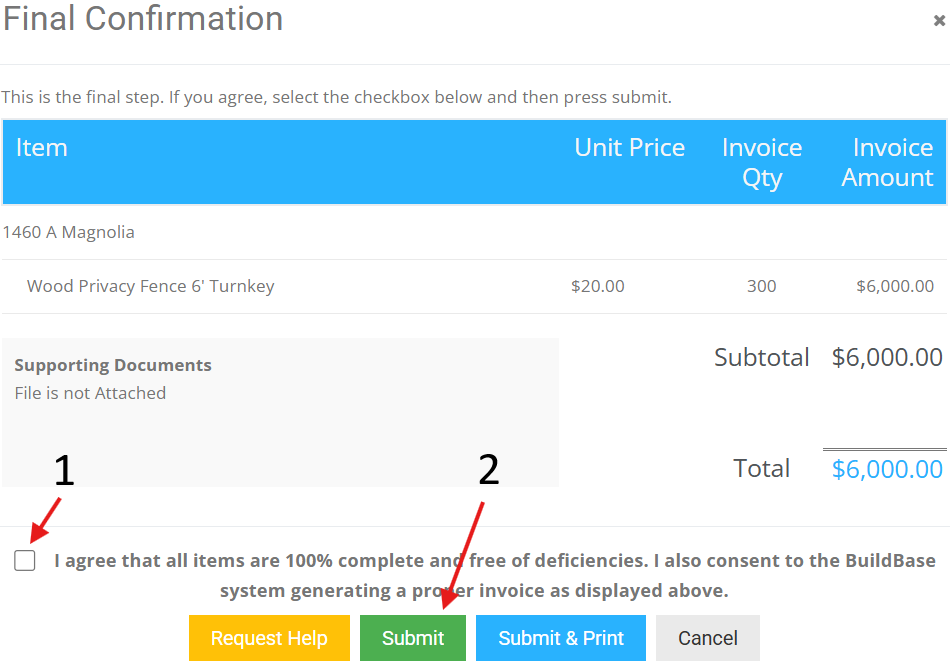
- Accept the agreement
- Click Submit
Congrats, your invoice has now been sent to the builder partner. you can follow the status of the invoice either directly on the purchase order or in the invoicing screen.
