Plan - Assign Start Date

The plan feature allows you to schedule the stake date of your job on a calendar.
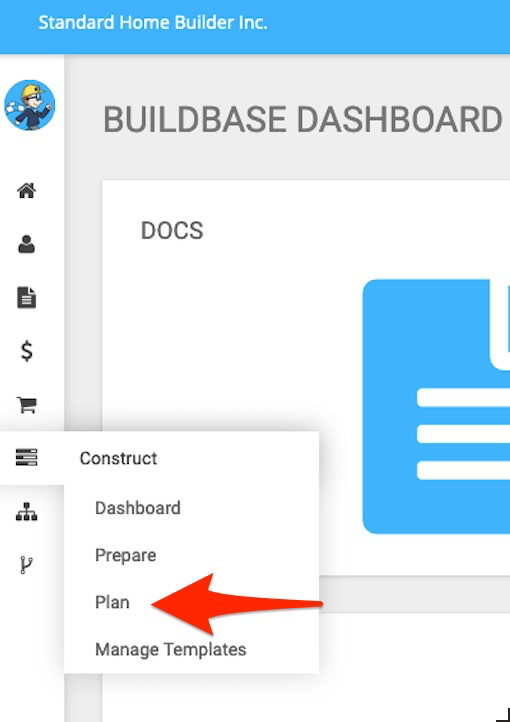
In this application, we are able to take all the jobs in which we have assigned schedules and now plan out when we would like them to start.
- Allows us to create even flow
- Allows us to stagger starts based upon staffing and vendor resources
- Allows us to plan for our goals in a very visual way
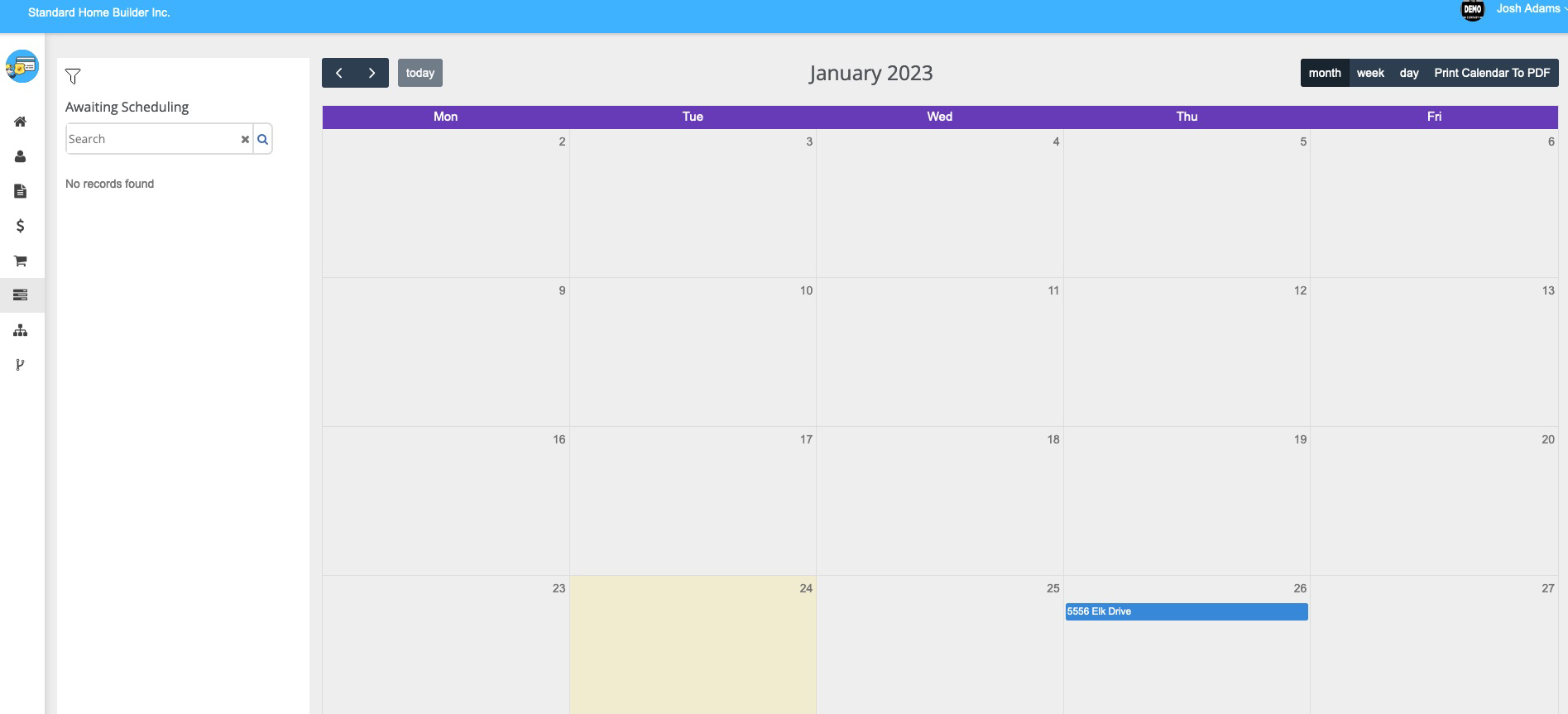
Above we can see our calendar with today’s date highlighted in tan.
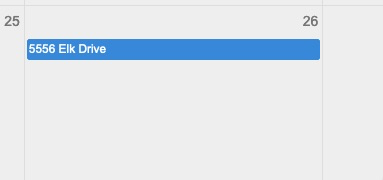
We can also see that currently there is one address listed on January 26th:
Previously, we demonstrated how to assign and start/begin a schedule. This application allows us to take that schedule and assign a start date for the first task in the schedule.
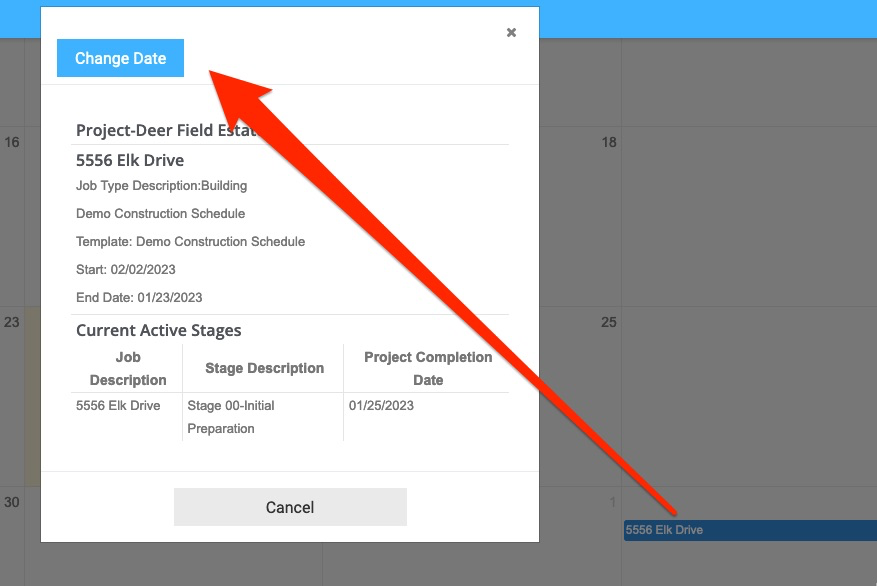
For example, by clicking on the address above:
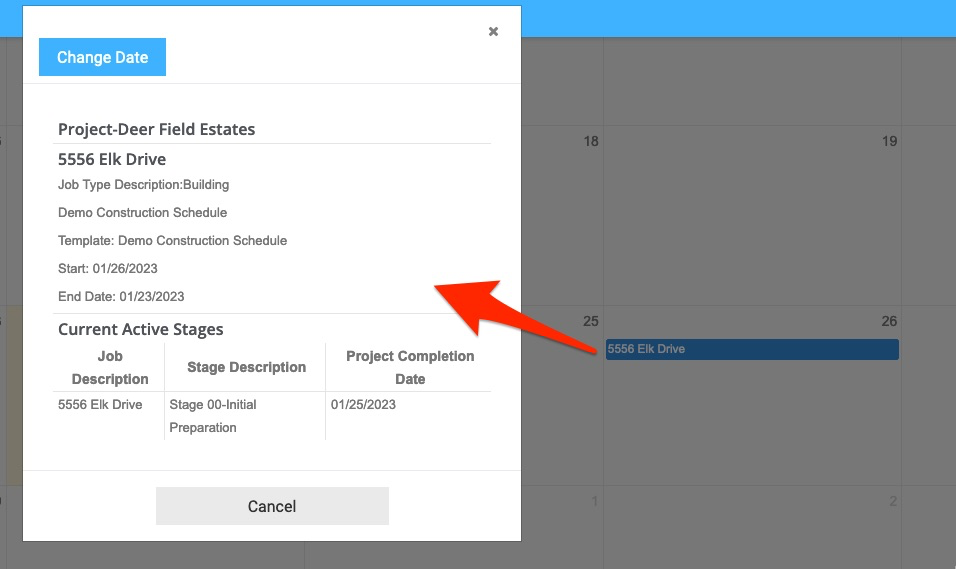
We can see that for 5556 Elk Drive, the first stage “Stage 00-Initial Preparation” is scheduled to start and finish on 1/25/2023.
To change the desired date, simply drag the tile on the screen:
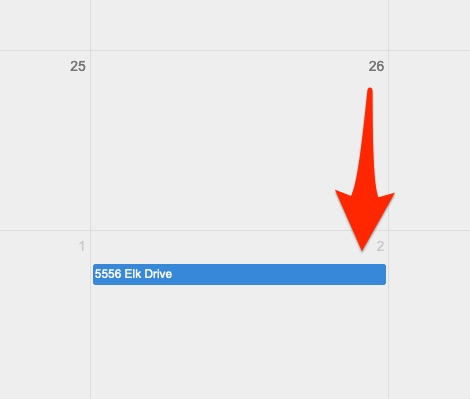
Or, click on the address:
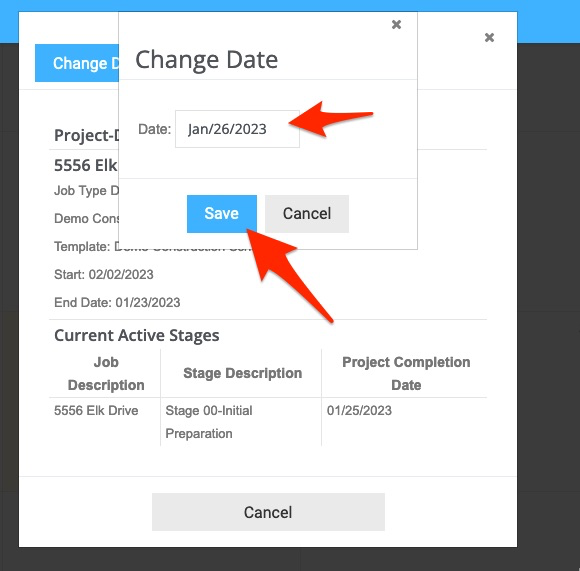
We can now see that we have successfully moved this job back to 1/26/23 from 2/2/23.
The calendar view may be changed to view by month, week, or day:
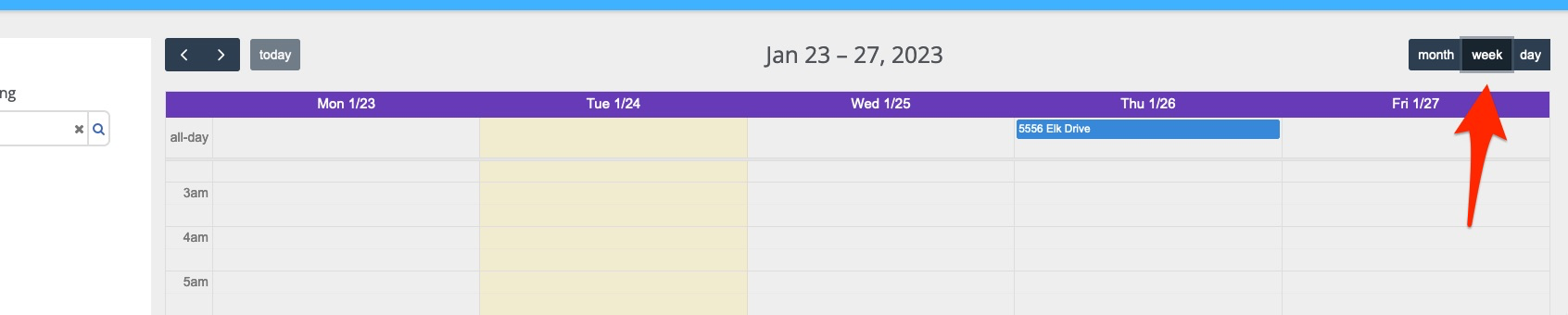
The toggles allow us to move quickly through weeks or days:

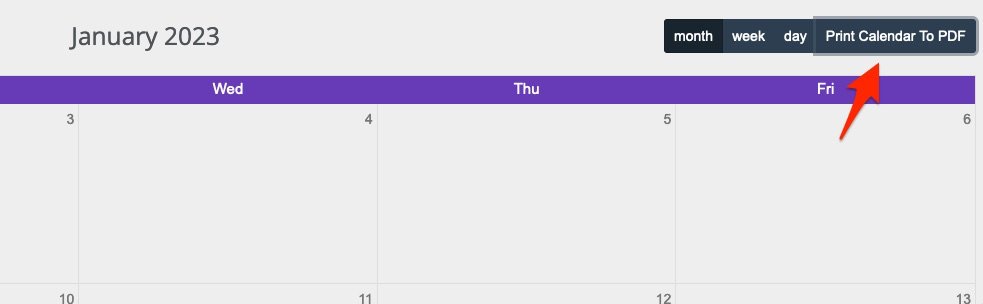
Our calendar may also be printed in PDF format:
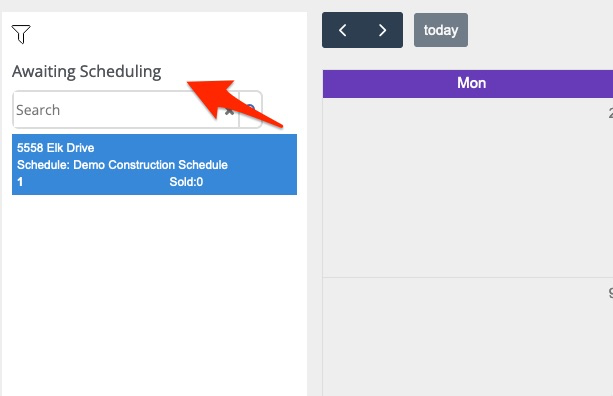
The left side display of this app:
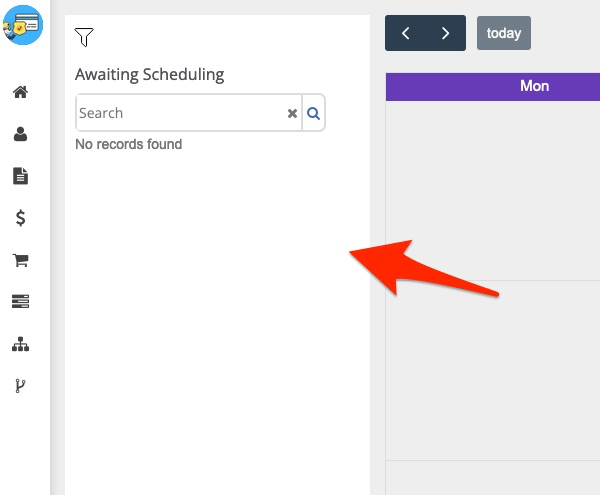
Exists to provide us with a list of jobs that:
- Have schedules assigned
- First stage or domain or group of tasks has been started
- Now need the first task to have an assigned start date
Once you have a properly conditioned schedule, you will see the following
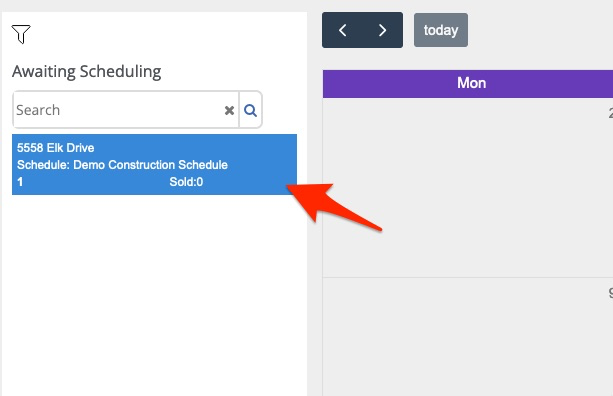
We can now see that 5558 Elk Drive needs to be assigned a schedule start date.
Next, we would simply determine the desired start date and drag the address onto the calendar:
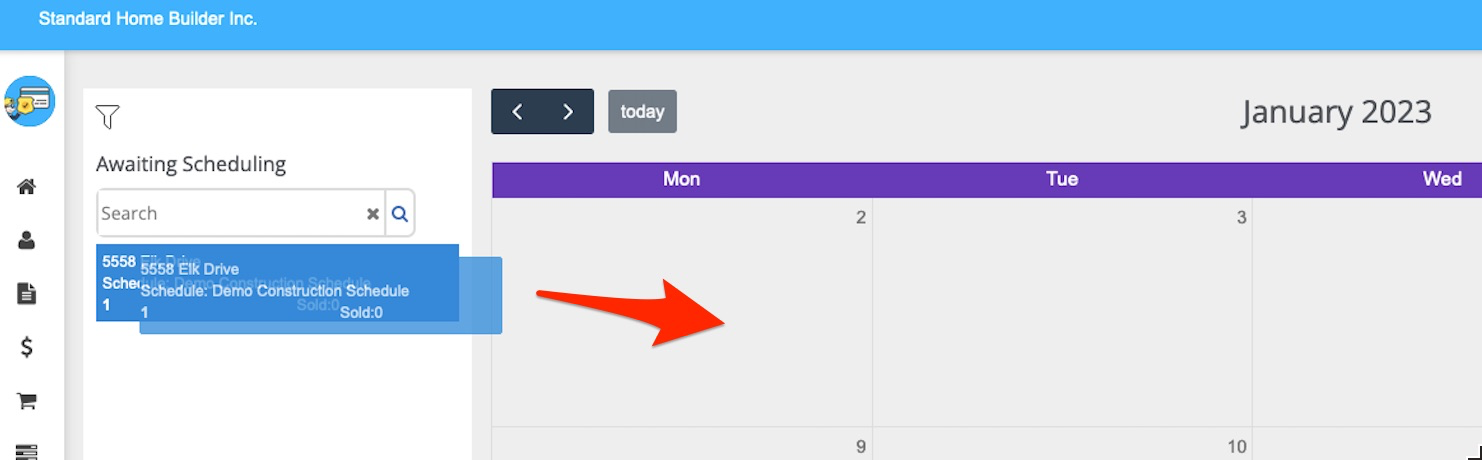
But before we do that, let’s take a look at the search and filtering features:
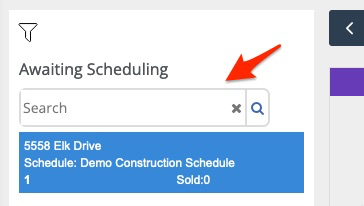
If the “Awaiting Scheduling” job list were long, we could simply type in partial address to find the desired job:
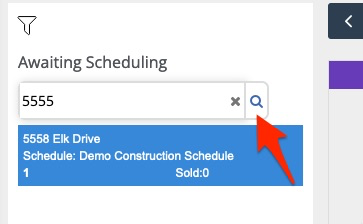
Then click “search” or enter:
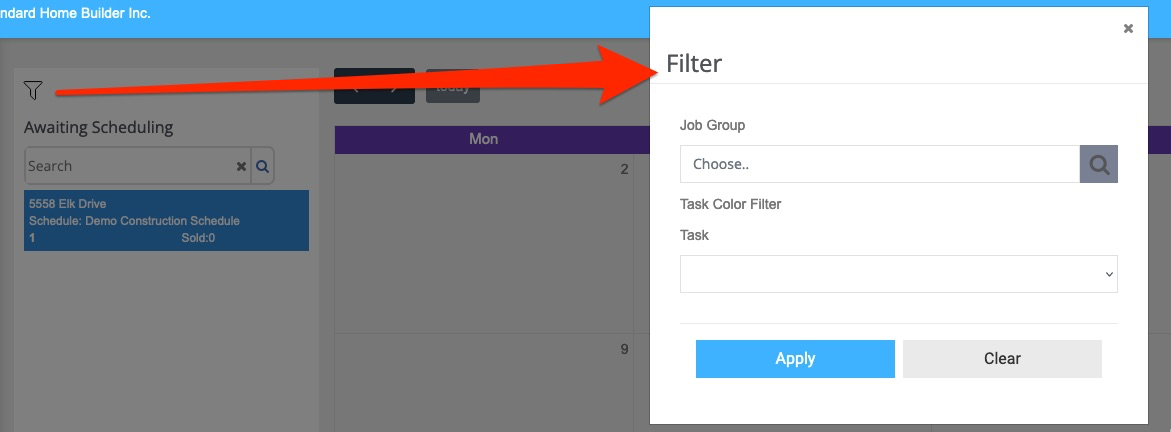
The filtering tool may also be used:
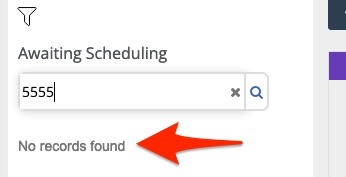
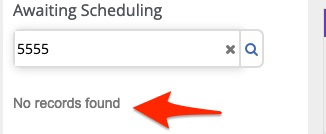
I type in 5555 and hit enter, finds nothing – correct:
Instead of hitting the “X”, I just delete the search and when I click anywhere on the screen, it should clear and go back to the address list but it does not:
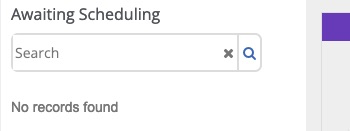
I must hit the X to bring back all the jobs.
