Invoicing on Behalf Of

Sometimes there will be vendors that you will generate purchase orders for but will not use BuildBase for invoicing.
This may include:
- Utility Companies
- Partners with technology limitations
Internal User Access
In order to access the Invoice on Behalf of feature, the user in the BuildBase portal needs to be assigned to a security role that has the operation code "Invoice on Behalf of". Please see your system security administrator to confirm that this is set up.

Setting Up Email of Requestor
In order to use the Invoice on Behalf Of feature, the vendor must have a contact both in BuildBase portal and on the Vendor card in Dynamics. For utility companies, that might not have a BuildBase use or Dynamics vendor contact, it is recommended that you create a generation contact for these vendors that would be "Invoicing@clientdomain.com". Please see the add vendor contact process to add this generic email address to those vendors.
In BuildBase Portal under Administration click User
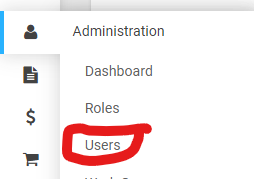
Find the vendor contact in BuildBase and click Assign Vendor

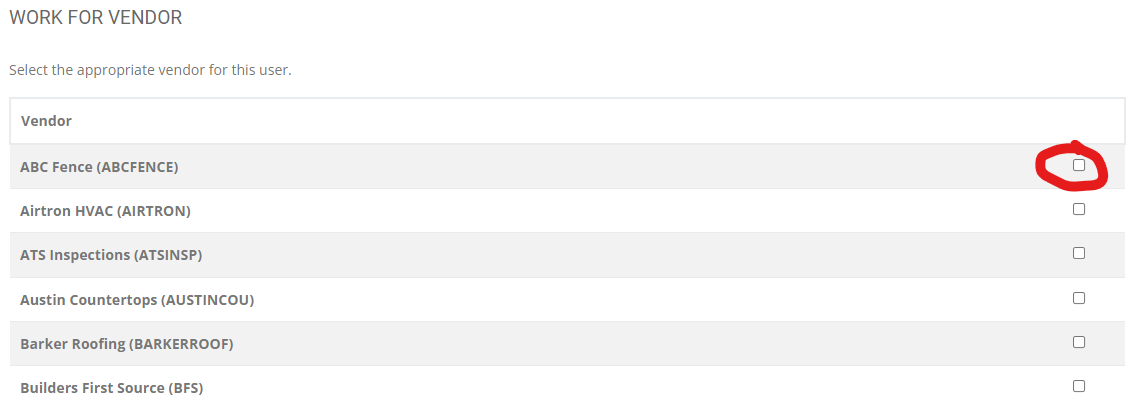
Find the vendor that they are associated to in the list, check them off
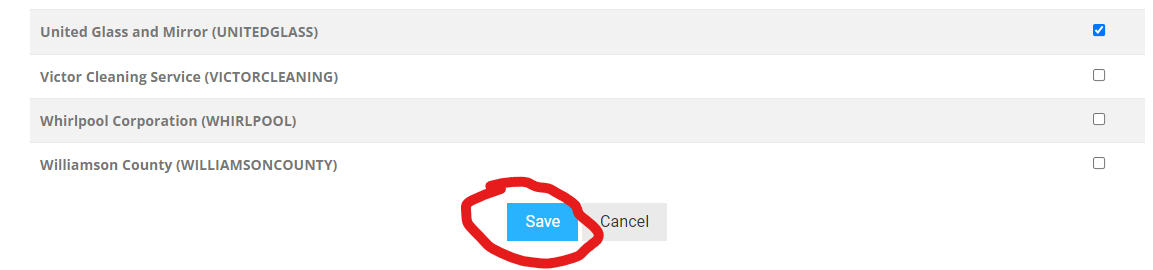
Scroll to the bottom of the list and click save
Submit Invoices
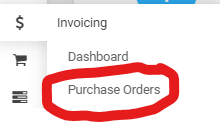
Go to the purchase orders screen
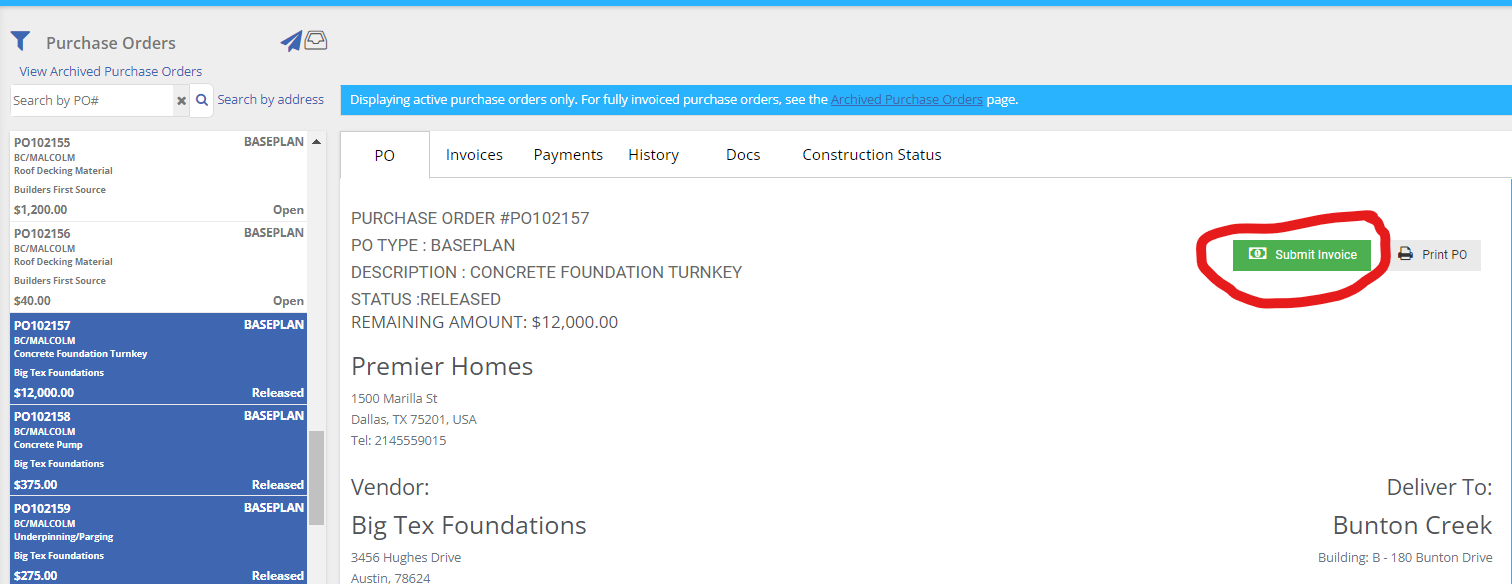
Use the search functions to find the purchase orders that you wish to submit an invoice for and click the submit invoice button
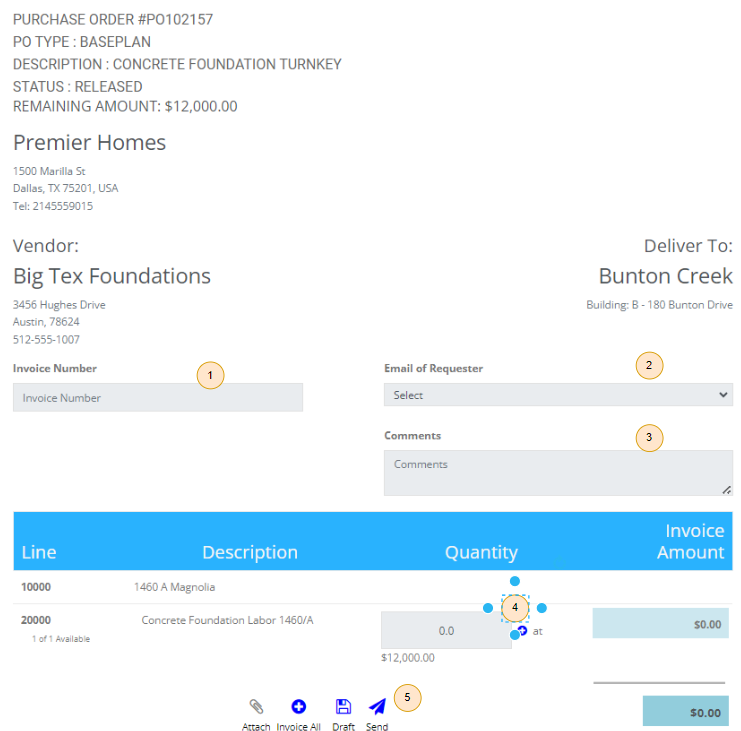
Enter the information about the purchase order
- Invoice Number: This must be unique per purchase order. If this is a vendor that does not supply an invoice number, it is suggested to use the purchase order number as the invoice number.
- Email of the Requester: This could be a vendor user or the generic user discussed above. If you do not see an email in list, please see the FAQ section.
- Comments: Why is the accounts payable team submitting this invoice instead of the vendor.
- Invoice All: Enter the quantity that you want to invoice for.
- Click Send to submit the invoice
The Final Confirmation screen will appear
- Click the legal acceptance to submit the invoice
- Click submit or submit & print
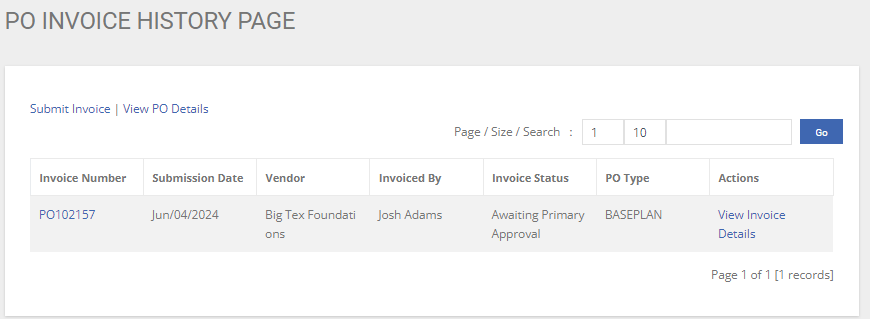
Congratulations, your invoice has been submitted and is now waiting approval.
FAQ
What if I do not see an email address in the list of emails?
- Check to make sure that:
- There is a contact on the vendor card in Dynamics for that company
- There is a user in BuildBase Portal
- The user in BuildBase Poral as the vendor checked off under the assign vendor
The submit invoice button is not enabled?
- Check to make sure that the construction task that the purchase order is assigned to is completed