Introduction
Administration
Vendors & Partners
Purchase Order Views
Submitting an Invoice
Construct Schedule
Task Notes for Vendors
Payments/Remittance Advice
Vendor Export POS
Project Management
Purchasing and Estimating
Invoicing
Items
Introduction To Items
Navigating Items
When to Create a New Item
Unit of Measure
PO - BoM on Purchase Orders
Cost Model - Budgets
Bulk Item Creation and Modification Tools
Items FAQ
Attributes
Item Costing & Primary Vendors
Classification Codes
Creating Styles/Pallets/Storyboards
Jobs/Projects
Non-Job Purchase Orders
Construct
Introduction To Construct
Apply a Schedule - Prepare
Manage Construction Templates
Construction Dashboard
Delay Notes
Undo Task
Plan - Assign Start Date
Subtasks and Worksets
Task Notes
Sales
Sales Document Configuration
Sales Model Template Configuration
Sales Regions
Update Upgrade/Option Pricing
Docs
Introduction to Docs
Uploading a Document
Configuring Categories and Types
Bulk Permission Assignment
Reporting
Warranty
Introduction to Warranty
Accessing and Navigating the Warranty Module
Dashboards
Reviewing and Triaging Warranty Requests
Creating Warranty Requests
Find and Manage Warranty Jobs
Managing Warranty Requests
Managing Deficiencies and Work Orders
Closing Warranty Requests
Accounting
- All Categories
- Docs
- Uploading a Document
Uploading a Document

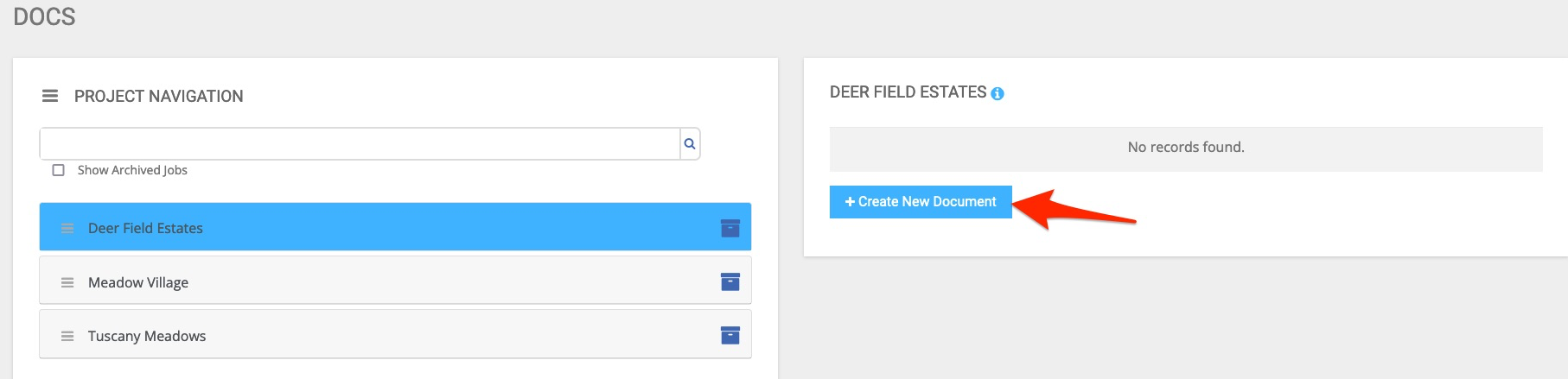
After navigating to the job that you want to upload a document to, click the Create New Document under the document list
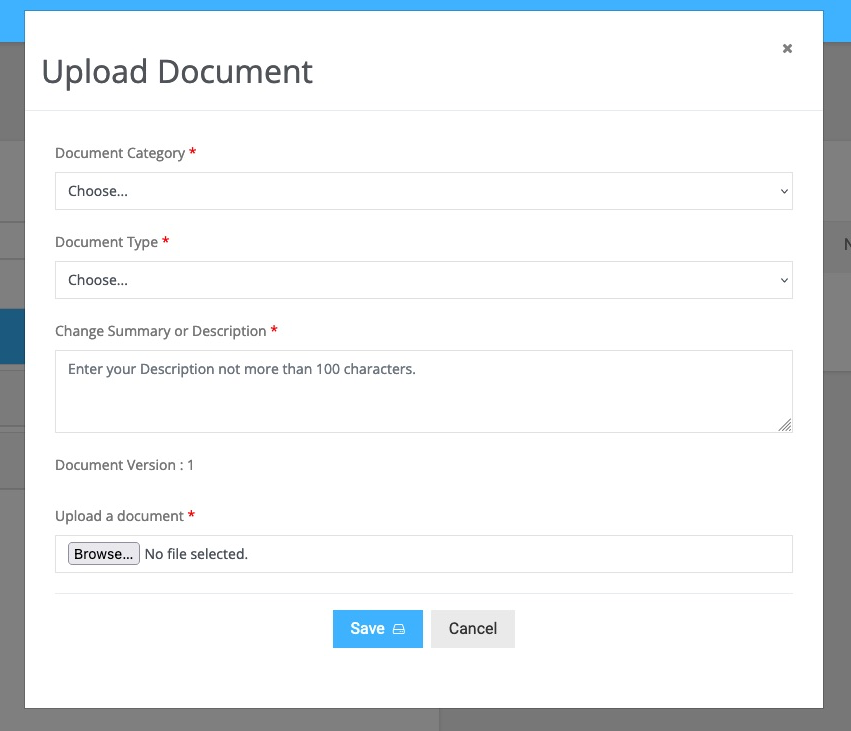
The upload document popup will appear, fill in the manditory fields marked with the * and then upload your document.
- Document Category - This is the group that the document will appear under.
- Document Type - This the type of document, like a building permit, that you are loading. Only document types that you have access to will appear in this list.
- Change Summary or Description - This is the description of the change to the document and could be like "First Version" or "Added a garage to the building permit".
- Upload Document - click the browse to navigate to the document that you want to upload and share.
Once you are done, click save to load the document
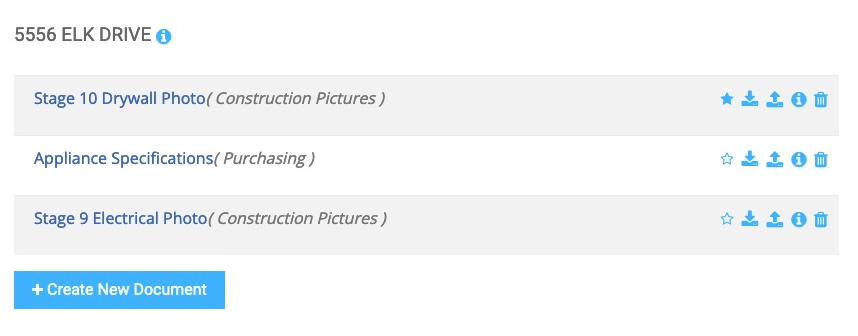
The document will now appear in the list of documents for that job