Subtasks and Worksets

Subtasks are used to connect multiple, related, construction tasks together to support vendor scheduling. An example would be the task to prep basement slab and pour basement slab. These are two individual tasks which are related to the same purchase order and vendor.
In order to create a connection between two construction tasks, BuildBase uses worksets. By placing each task into the same workset, a relationship will be created between these two tasks, letting the vendor see both the subtask and the purchase order task.
Using the above example when it comes to configuration.
Prep Basement Slab would be a subtask to Pour Basement Slab. Pour Basement Slab would be the purchase order/pay task.
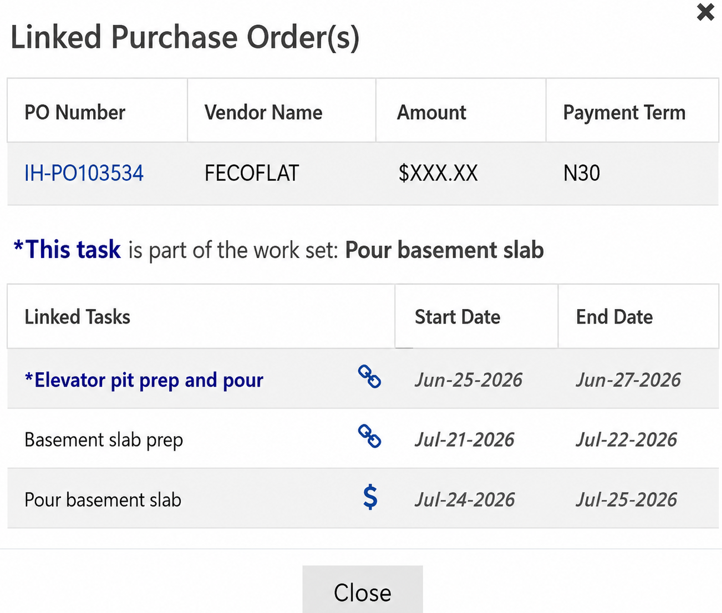
When viewing a construction schedule, a subtask will use the link icon.

The purchase order task will use a dollar sign icon.

The following help document will instruct you on how to use subtasks and worksets.
Configuration of Workset
In order to use a workset in a construction schedule, you must first configure the workset in manage template under construct.
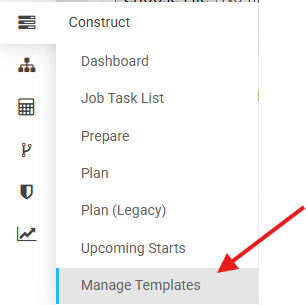
Step 1: Click on Manage Template
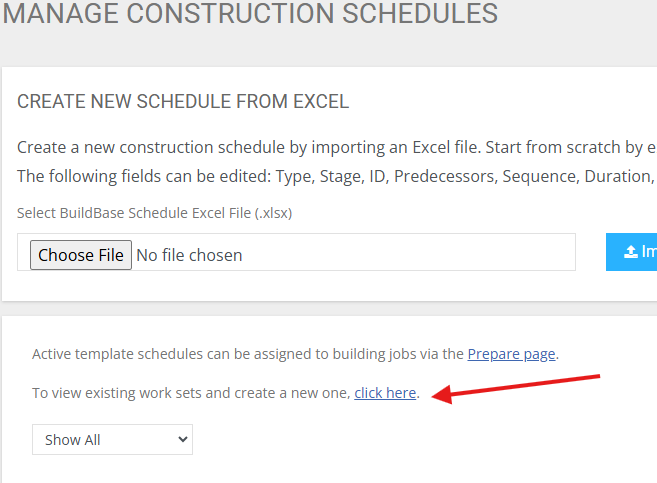
Step 2: Click on the word "here" under manage templates

Step 3: Click "here" where it says to view existing workset.
Step 4: Manage Worksets - from this screen you can create or edit existing worksets
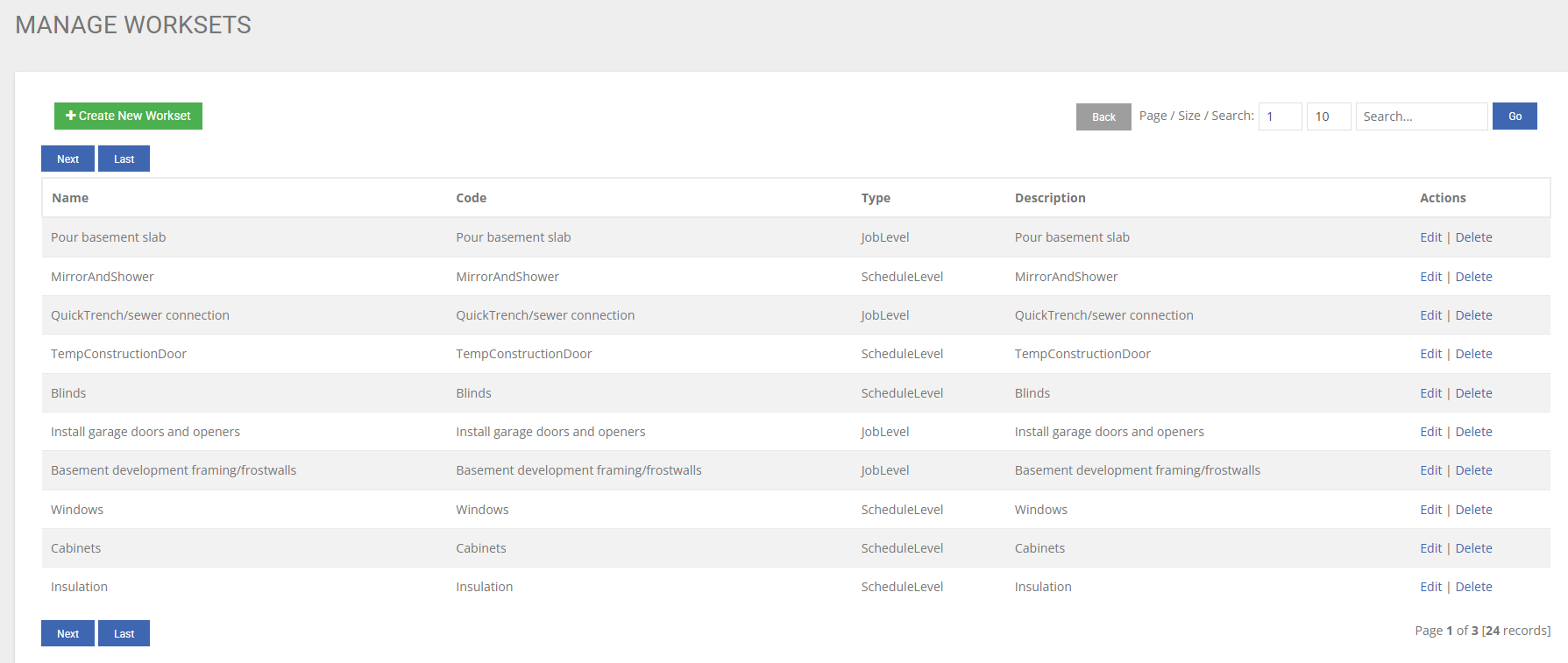
Step 5: Create Workset
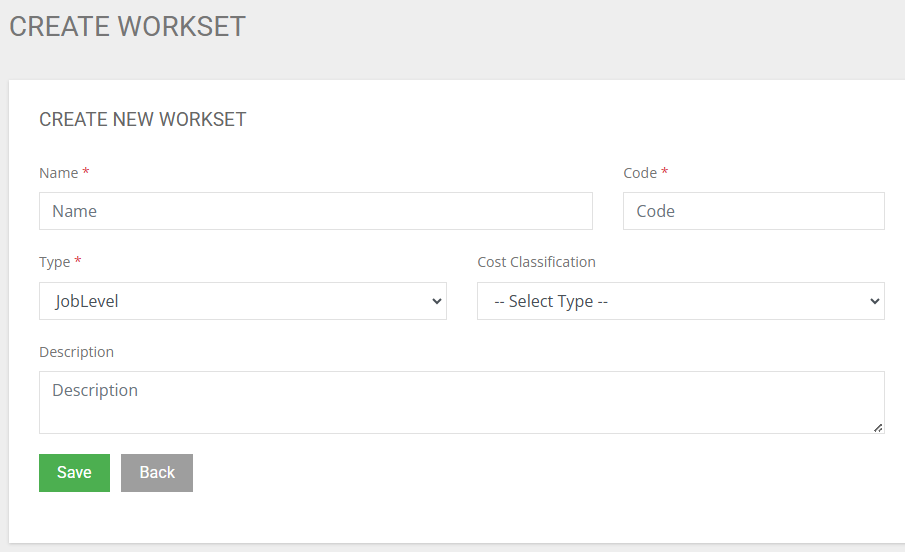
- Name: The name of the workset, this is what you will enter into the excel schedule import under worksets in order to link tasks
- Code: Enter the name of the workset, this feature is reserved for future use.
- Type: Enter JobLevel
- Cost Classification: This is reserved for future use
- Description: This is reserved for future use
Once you are done, click save and the workset will now be available for use in both the manage construction schedule template screens and the construction schedule import templates.
Using a Workset
Manage Schedule Template Interface
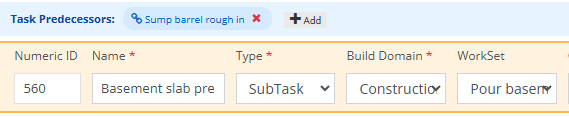
When viewing a construction schedule you will find the subtask icon to the right of the task name. Additionally, you will find the workset name under works.

To set the task type, you can edit the task and change the task type to Subtask, then you can apply the workset that subtask will be part of
Schedule Template Import
In the schedule template import file you can easily apply worksets by doing the following
- For all tasks that are part of the workset, enter the preconfigured workset name in the workset column
- Make sure that the type is either Subtask or Standard.
- Subtasks: Non-pay tasks that need to be scheduled with the vendor
- Standard: Pay task that need to be scheduled with the vendor

Viewing Subtasks and Worksets
Site Supervisor View
In the job task tracker or the all tasks view, you can identify a subtask by the link icon. The vendors assigned to the task will be inherited from the purchase orders assigned to the standard task in the workset. You cannot assign vendors directly to subtasks.


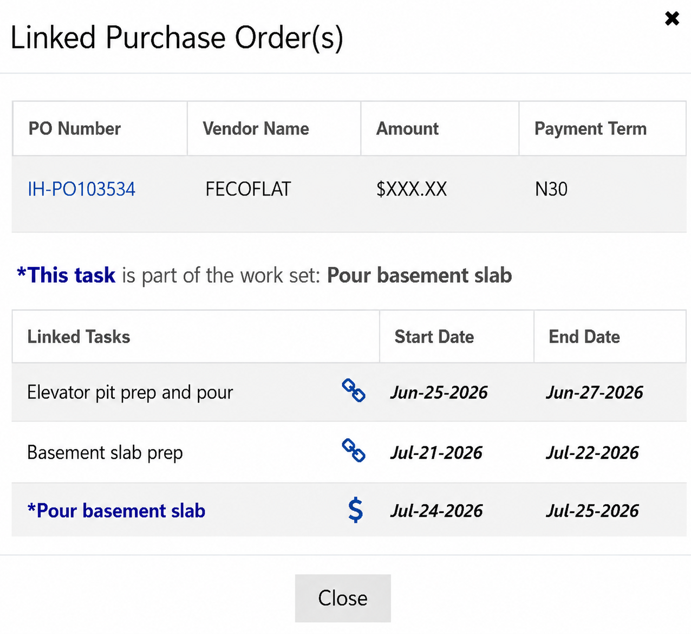
If you click on either the link icon or the dollar sign icon, BuildBase will show you the workset, the purchase orders that are part of the workset and all the tasks that are part of the workset.
Vendor View
Vendors can see subtasks in their schedule tasks. They will see each task and standard task in the workset as an individual line in their task list.
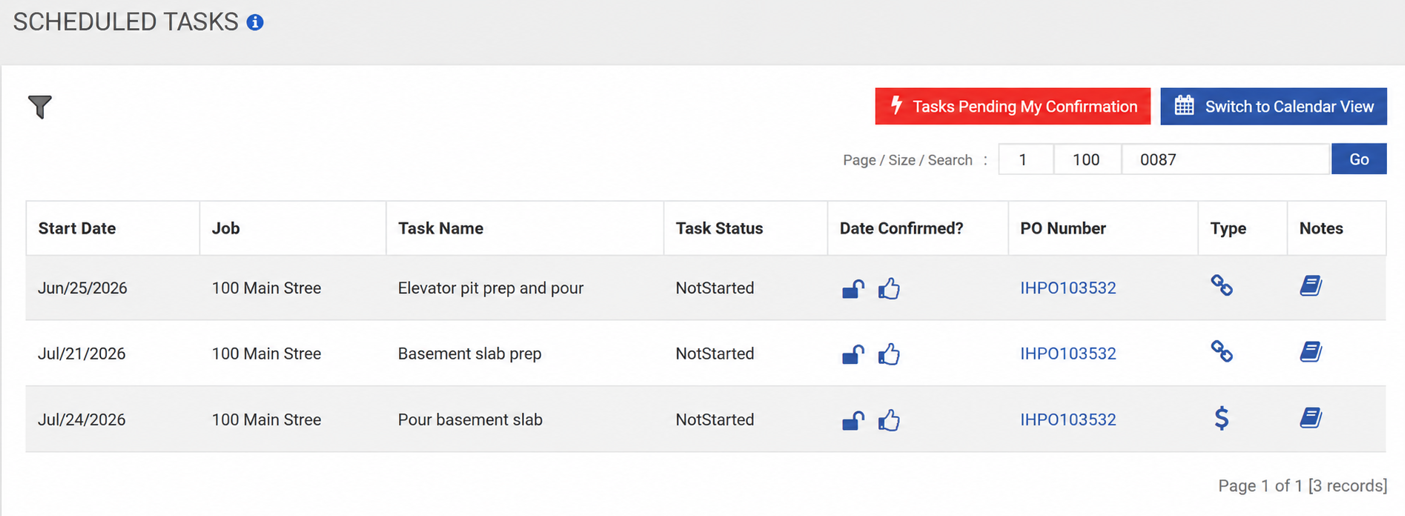
If the vendor clicks on the link icon or the dollar sign icon for a task in a workset, all tasks in that workset will be shown along with their linking purchase order.