Construct Schedule

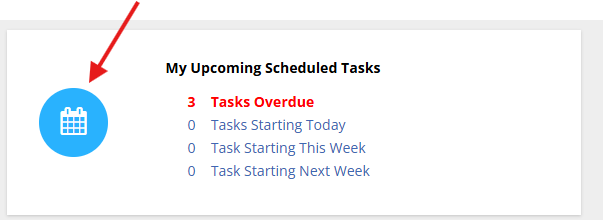
To view your upcoming construction schedule, on your dashboard you will see a tile for construction schedules. In the example below, you can see that this vendor has 5 tasks scheduled.
In order to view those tasks, click the construction icon.
This will open the scheduled tasks list.
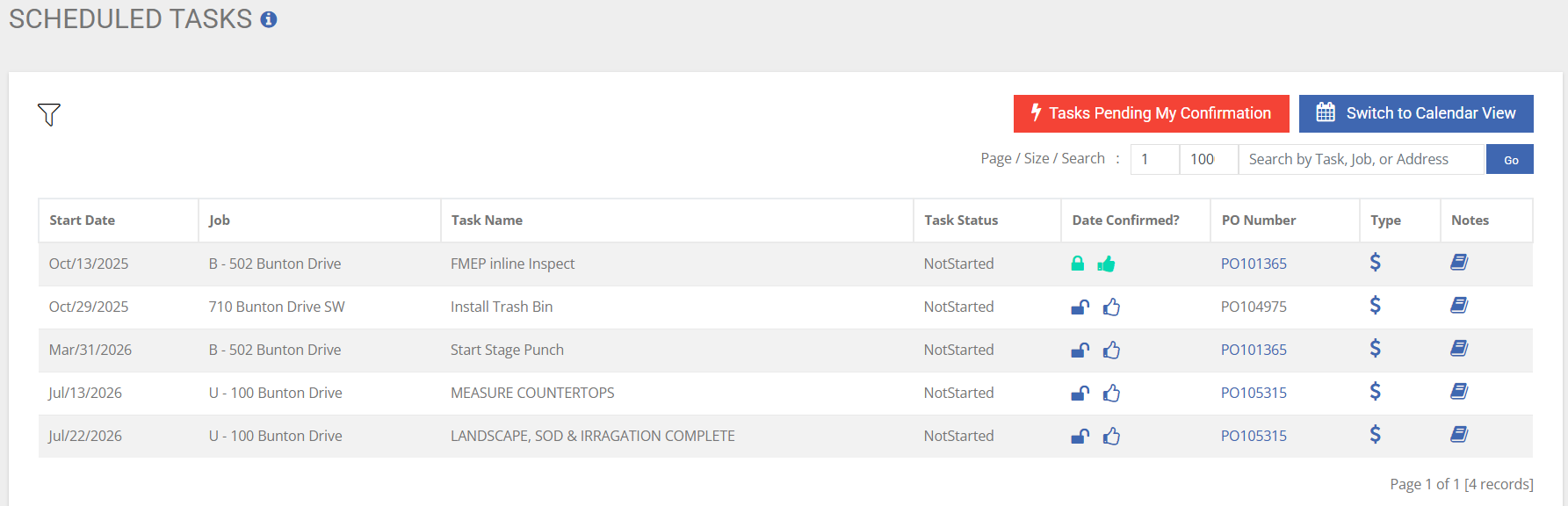
You will find all the key information that you require
- Task Start Date: The day that the task is currently set to start. This might be a system scheduled date or a site manager scheduled date.
- Job: This is the job description, which is usually the address, for the task
- Task Name: Is the name of the task to complete
- Task Status:
- Other: The task has not started yet
- Inflight: The task has started
- Tasks marked completed by the builder will not appear on the list
- Date Confirmed?: If the date has been confirmed with the site manager
- At this time, there is no in app ability to confirm the date with the builder. Please following your approved process with the homebuilder to confirm the date.
- PO Number: this is the link to the purchase order for the work to be completed.
Confirming Tasks
BuildBase supports request and confirmation of the start dates for a task. When a site manager locks a date, which changes the lock icon from blue and unlocked to green and locked, the site manager is request the trades partner to be on site for that day. The trades partner can then confirm that date by click the blue thumbs up icon which will change it green, confirming your arrival date.
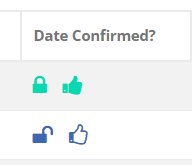
Please contact your construction manager to change a date or cancel the confirmation of arrival.
Site Notes
In order to review site specific notes, click on the notes icon next to each task.
Quick Links
Use the quick links to easily view your tasks pending confirmation or switch to a calandar view to see your upcoming tasks.

