PO - BoM on Purchase Orders

How Items in an Assembly Appear on Purchase Orders
Vendors are issued purchase orders for the goods and services they provide. However, in most cases vendors will likely receive more than 1 purchase order per job depending on the items they provide. This is due to the way in which the system groups items to show on a purchase order.
When the system looks at items to determine the purchase orders it needs to create:
- It first looks to see if the item is in an assembly
- Then the vendor assigned to the item
- And finally, it looks at the Uniformat/Classification code of each individual item
When an assembly item (folder) is created, it should NOT have a Uniformat/Classification code assigned. The system ignores these and instead looks at the items within the assembly. However, the description of the item assembly is important as this DOES appear on the PO.
Think of assemblies as a “Takeoff layer/junction” or a folder that simply houses items you want to be in the same package. Examples of this might be lumber, appliances, etc. But keep in mind, for the items in an assembly to appear on the same purchase order, they must ALL have the same Uniformat/Classification code.
Let’s walk through some examples to better illustrate how it works.
For example, these items assigned to a vendor on a job all have the same Uniformat/Classification code and are NOT in an assembly:
A - Uniformat/Classification code 2502
B - Uniformat/Classification 2502
C - Uniformat/Classification 2502
D - Uniformat/Classification 2502
All 4 of these items will appear on 1 purchase order with uniformat code 2502 for this vendor.
However, if the items have the same uniformat code BUT are in different assembly BOMS:
A - BOM 1 (Uniformat/Classification 2502)
B - BOM 1 (Uniformat/Classification 2502)
C - BOM 1 (Uniformat/Classification 2502)
D - BOM 2 (Uniformat/Classification 2502)
The system will create 2 purchase orders:
1 PO will have items A, B, C with Uniformat/Classification 2502
1 PO will have item D, with Uniformat/Classification 2502
Even though all items have the same Uniformat/Classification, they will appear on separate POs due to the assembly BOM to which they are assigned.
As takeoffs become more complex, we may see an example like this:
A - BOM 1 (Uniformat/Classification code 2504)
B - BOM 1 (Uniformat/Classification code 2504)
C - BOM 1 (Uniformat/Classification code 2502)
D - BOM 2 (Uniformat/Classification code 2504)
The system would create 3 purchase orders in this scenario:
1 PO will have items A, B with Uniformat/Classification 2504
1 PO will have item C with Uniformat/Classification code 2502
1 PO will have item D with Uniformat/Classification code 2504
In our last example, we now have 2 purchase orders for cost type 2504. But, if we have 10 more items assigned to a vendor on this job in Uniformat/Classification code 2504 that are NOT in an assembly, the system will create an additional PO to house these, giving us a total of 3 POs for Uniformat/Classification code 2504.
In some cases, it might not matter if items in an assembly appear on the same purchase order. For example, an option for a game room may have many items across many Uniformat/Classification codes and impact multiple vendors. But, when dealing with assemblies like lumber packages where 1 vendor is supplying all and we need all the items delivered at the same time, we do want them on 1 purchase order.
It is extremely important that we understand this concept and keep it in mind as we create our Uniformat/Classification codes and build our takeoff assemblies. For example, let’s say that your organization performs conventional stick framing and currently has 2 frame drops (deliveries).
Frame package 1
Frame package 2
Frame Package 1 may include items like:
- 2x4 treated base plate
- 2x4 studs
- Thermo Ply
- OSB for bracing
Frame Package 2 may include items like:
- 2x4 studs
- OSB for roof decking
Because we want these items to be delivered at different times in the construction process, we want them to show up on 2 separate purchase orders.
We must also understand that our Uniformat/Classification code needs to be meaningful as it applies to items. We must know this as we create our item catalog so that we can plan accordingly. If we look at our items again in both packages:
Frame Package 1 may include items like:
- 2x4 treated base plate
- 2x4 studs
- Thermo Ply
- OSB for bracing
Frame Package 2 may include items like:
- 2x4 studs
- OSB for roof decking
We can clearly see that these items overlap (same items in both), we just want them at different stages in the
construction process.
Let’s say that your organization has decided to use Uniformat/Classification code (2502 – Framing Material) for these
items. Again, Uniformat/Classification codes should be meaningful but don’t get too bogged down in the details.
Remember, you may use item attributes to further distinguish between items within a Uniformat/Classification code.
For example - Uniformat/Classification code 2502 - Framing Material may include items like:
- 2x4 stud
- 2x4x16
- OSB
- Simpson H clips
- Trusses/LVLs
You can place these all in 1 Uniformat/Classification code but also have attributes like:
- Dimensional Lumber
- Plywood
- Hardware/Brackets
- Truss/LVLs
Use of these attributes will still give you the ability to search and categorize items but will make assemblies and take offs much easier if we have fewer Uniformat/Classification codes to contend with.
Now, back to our example:
Frame Package 1
- 2x4 treated base plate - 2502
- 2x4 studs - 2502
- Thermo Ply - 2502
- OSB for bracing – 2502
Above, we have created an assembly “Frame Package 1” and assigned the items with Uniformat/Classification code 2502.
We have now made it so that the above items will all be on the same purchase order since they are all in the same assembly AS well as have the same Uniformat/Classification code.
Remember – if any items above were not 2502, they would appear on a separate PO.
We then do the same for package 2. We create an assembly called “Frame Package 2” and assign the desired items.
Frame Package 2
- 2x4 studs
- OSB for roof decking
These 2 items are also being used in frame package 1, and that is ok. We also know they have Uniformat/Classification 2502 assigned, which is also fine. But since we have created a separate assembly, these items will show up on a second PO for Uniformat/Classification 2502 with the assignment “Frame Package 2”.
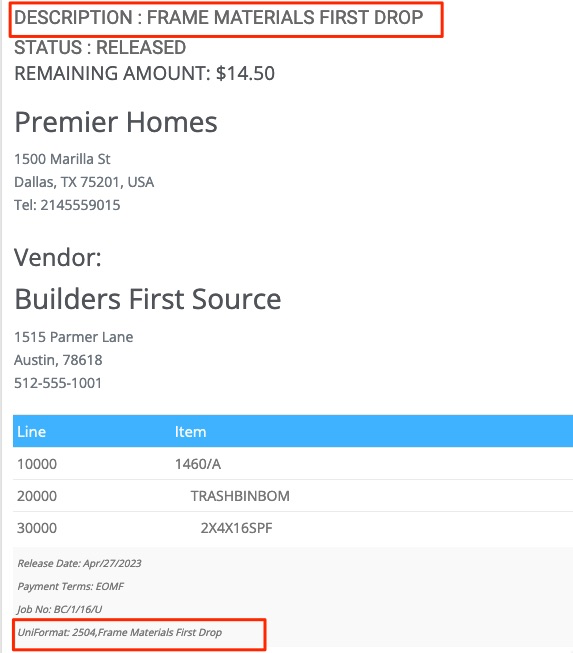
But what do we mean when I refer to “assignment”? The PO will show the following:
Uniformat/Classification description at top, code and description at the bottom:
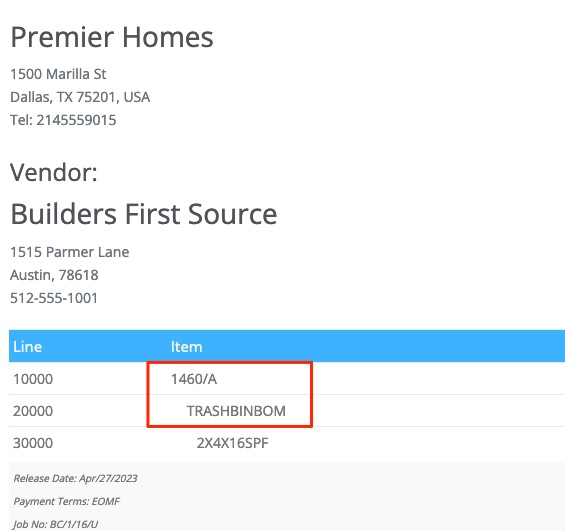
The PO will also show which assemblies the items came from:
Using our example above, our first PO would look like this:
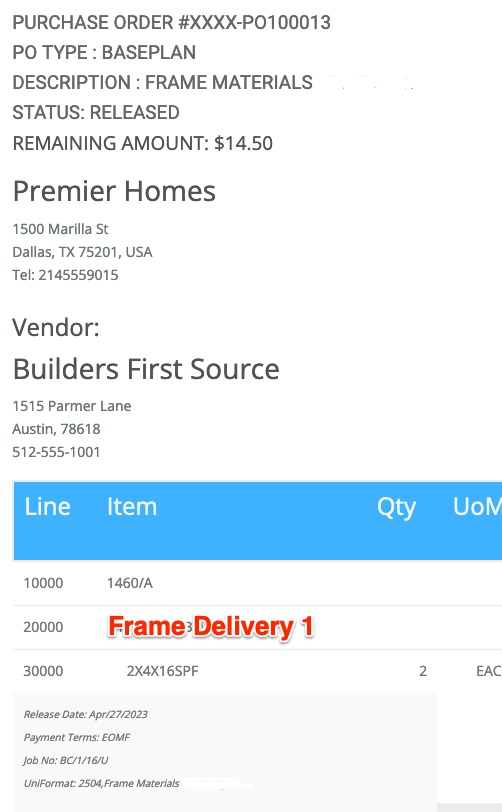
Uniformat/Classification listed at top and bottom, and the assemblies 1460/A, and Frame Delivery 1 would appear. This is how the vendor will know what stage/part of the home the material is for. Notice that the “1460/A” is our parent assembly, and since Frame Delivery 1 is an assembly within the 1460/A assembly, they both show here.
This means is that IF we want a frame drop 1 and 2.
- We can use all the same items
- We can name our assemblies by frame drop 1 and 2 and the Uniformat/Classification code will appear at the top/bottom.
- The name of the assembly “Frame Delivery 1” will also appear on the PO.
